
Background Removal Tips That Start with the Original
Practical background removal tips for sharper inputs, difficult edges, white details, and transparent PNG delivery. Learn what to check before a retry.
These background removal tips focus on choices you can inspect: the original photo, the separation method, the subject edge, and the final PNG background. A clearer source and a deliberate review can be more useful than repeating an uncertain task without changing anything.
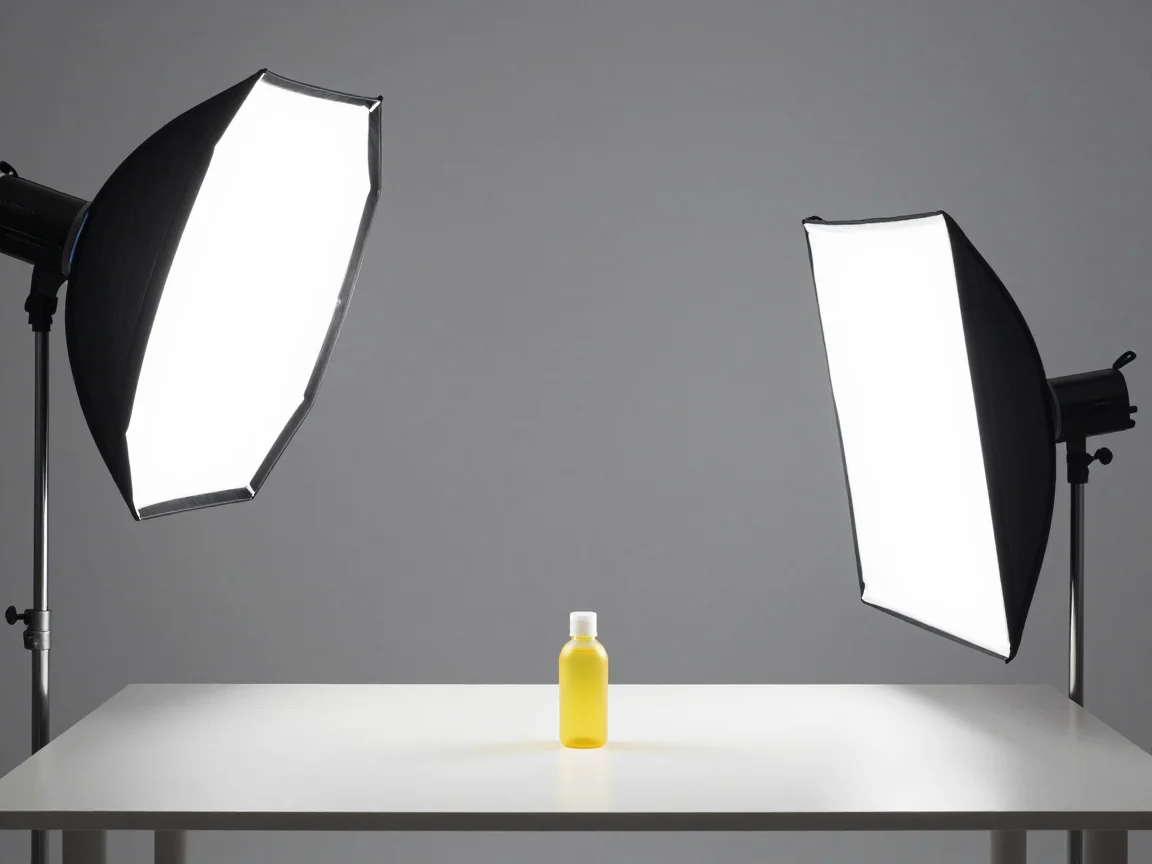
A sharp, evenly lit original makes the result easier to inspect.
Background removal tips for a better original
Choose the clearest original and keep the whole subject in frame. Avoid cropping the end of a signature, a hairstyle, a product handle, or a pet’s ears. If source pixels are missing, there is no reliable original detail to preserve.
Even lighting can reduce paper shadows and weak boundaries. A plain backdrop that contrasts with the subject makes the edge easier to inspect. Enlarging a blurry screenshot does not give the larger file better original detail.
Match the method to the background
AI attempts to separate a subject from its surroundings and is the default for photographs. Review hair, fur, mesh, glass, reflections, and partly hidden edges. No payment label guarantees every difficult boundary is correct.
For suitable simple graphics, the white-background, signature, and logo pages offer local white-pixel removal. It uses a light-color threshold rather than recognizing a subject. White text, pale product details, and faint ink can disappear too. Preview the setting and preserve the source.

Busy backgrounds and similar colors can make the subject boundary harder to judge.
Review small parts as well as the silhouette
Check the outside contour and internal openings: a mug handle, gaps between straps, letter interiors, and a narrow signature loop. A convincing outer shape can still contain a filled hole or missing line.
Use light and dark previews, then compare with the original at the same useful scale. White can hide a pale halo. Zoom is an inspection tool, not evidence that an image has been upscaled or given new detail.
Read status and errors before retrying
AI accepts JPG, PNG, or WebP up to 5 MB and 16 megapixels, with each side between 256 and 4096 pixels. Correct format or dimension errors before trying again. The optional local threshold can accept smaller suitable graphics within its displayed local limits.
Check the trial allowance or Use credits quote before a cloud request. Upload and queue conditions affect the wait. Leave the page open during upload and wait while a submission is being checked. Retry a known failure after reading its reason; repeated clicks on an uncertain task create confusion instead of a better image.
Inspect the downloaded PNG
Choose transparent export when another layout should show through, or a solid color for a filled background. This tool downloads PNG; its preview checkerboard is not a pattern to print into the file.
Check actual dimensions, margins, and appearance in the destination layout. A larger canvas adds space, not missing detail. Keep the source and finished PNG so another delivery can be prepared without losing your reference.
Keep the processing choice appropriate for the image
Cloud processing uploads media with shareable links. Avoid confidential photos or sensitive signatures. Uploads do not automatically become public examples, but someone with a public link may be able to view the image.
Local white-pixel removal keeps that operation on your device and uses no AI credits. Its privacy advantage does not make it suitable for every picture: review which pale details disappear before deciding the result is usable.
Turn the review into a repeatable habit
Look for difficult details

Check holes, transparent materials, thin lines, and faint detail individually.
A practical review sequence

Review the edge, openings, pale details, and final background before saving the image.
Frequently asked questions
What should I do first when an edge looks wrong?
Compare that area in the original and result, then inspect another preview background. Check source sharpness and method suitability. A better original or a suitable alternative is more useful than an unchanged repeat without diagnosis.
Can I download again after changing the color?
Yes. Color, margin, and canvas changes use an existing finished result locally and need no new AI removal. Check that the final PNG contains the background you intended.
How long should I wait before sending the image again?
There is no universal seconds limit. Follow task status, including a submission being checked. Retry a confirmed failure after addressing its cause, rather than treating a slower task as proof that nothing was submitted.
 Remove White Background from an Image — Remove white background with AI or optional local white-pixel removal. Inspect pale subject details, preview transparency, and download PNG.
 Make Background Transparent for a Reusable PNG — Make a background transparent, inspect edges on different previews, and download PNG. Review input limits and the trial or credit quote before processing.
 Remove Background from Signature Images — Remove paper backgrounds from signature images. Compare AI and local white-pixel options, inspect thin strokes, and download a transparent PNG.
 Remove Background from Logo Images — Remove a logo background and download PNG. Inspect lettering and enclosed spaces, or use optional local white-pixel removal for suitable simple graphics.
 HD Background Remover with Honest Dimension Checks — Use the HD background remover to inspect source detail and actual PNG dimensions. Review the quote and limits; background removal does not upscale images.