
White-on-white subject
White subjects can resemble the backdrop, so start with AI removal and inspect the retained details.

Remove a white background with AI, or choose local white-pixel removal for suitable simple graphics. Inspect pale details before downloading a transparent PNG.
Drop an image here, or choose a file
JPG, PNG or WebP · up to 5 MB and 16 MP per imageUploaded images use shareable media links. Avoid uploading sensitive images.
A photo can contain white clothing, pale products, reflections, and shadows as well as a white backdrop. Begin with AI when you need subject separation, and compare with the original before downloading.
For a dark graphic on a clean light field, local white-pixel removal may be useful. It is a color threshold, not subject recognition: matching pixels are removed wherever they occur, including white lettering and details inside the subject.
Switch to the on-device method before preparing a local result. Adjust gradually and inspect the edges. A lower threshold removes a wider range of light pixels; a higher threshold leaves more gray and off-white pixels in place.
The local method does not upload images or use AI credits. It can handle graphics below the AI minimum, but files must still meet the displayed local size and pixel limits. Keep the original so you can return to a setting that preserves an important detail.
Use a dark preview to look for missing pale edges, small holes, and faint highlights. White can hide an unwanted fringe or a gap in a white subject, so inspect more than one preview color.
This page defaults to transparent export. A solid background adds color behind the prepared image but cannot restore a foreground pixel removed by a threshold. Download PNG when you need transparency in another design.
AI removal accepts JPG, PNG, and WebP up to 5 MB and 16 megapixels, with each side between 256 and 4096 pixels. Review the limited Free trial allowance or Use credits quote. The local threshold has no AI charge.
Cloud processing has no fixed completion time. Keep the page open during upload and follow the status. Correct input errors before retrying a confirmed failure. Wait for a submission being checked instead of creating repeated requests.
Identify white areas belonging to the subject as well as the backdrop. Keep the original for comparison.
Use AI for photos and pale subjects. Choose a threshold only when removing matching light pixels throughout the image is acceptable.
Check edges, holes, and light details on contrasting previews. Adjust a local threshold only after seeing what it affects.
Keep export transparent or select a solid fill. Check the file in its destination layout.
AI attempts subject separation but still needs checking. The local threshold removes matching light pixels everywhere and can remove white clothing, text, or product details. Use the warning and preview to decide whether that method suits the image.
The optional on-device white-pixel method does not upload images or spend AI credits. It is useful for suitable simple backgrounds, not a promise of subject-aware separation. Cloud AI uses the available trial or displayed credit quote.
Off-white paper, shadows, and antialiased pixels may remain outside a conservative threshold. Lowering it can remove them, but can also remove useful pale detail. Inspect that trade-off instead of removing every light pixel.
Yes. Select white for export. This fills transparent areas but does not recover removed subject pixels. Keep the original if the separation needs revising.
White subjects can resemble the backdrop, so start with AI removal and inspect the retained details.
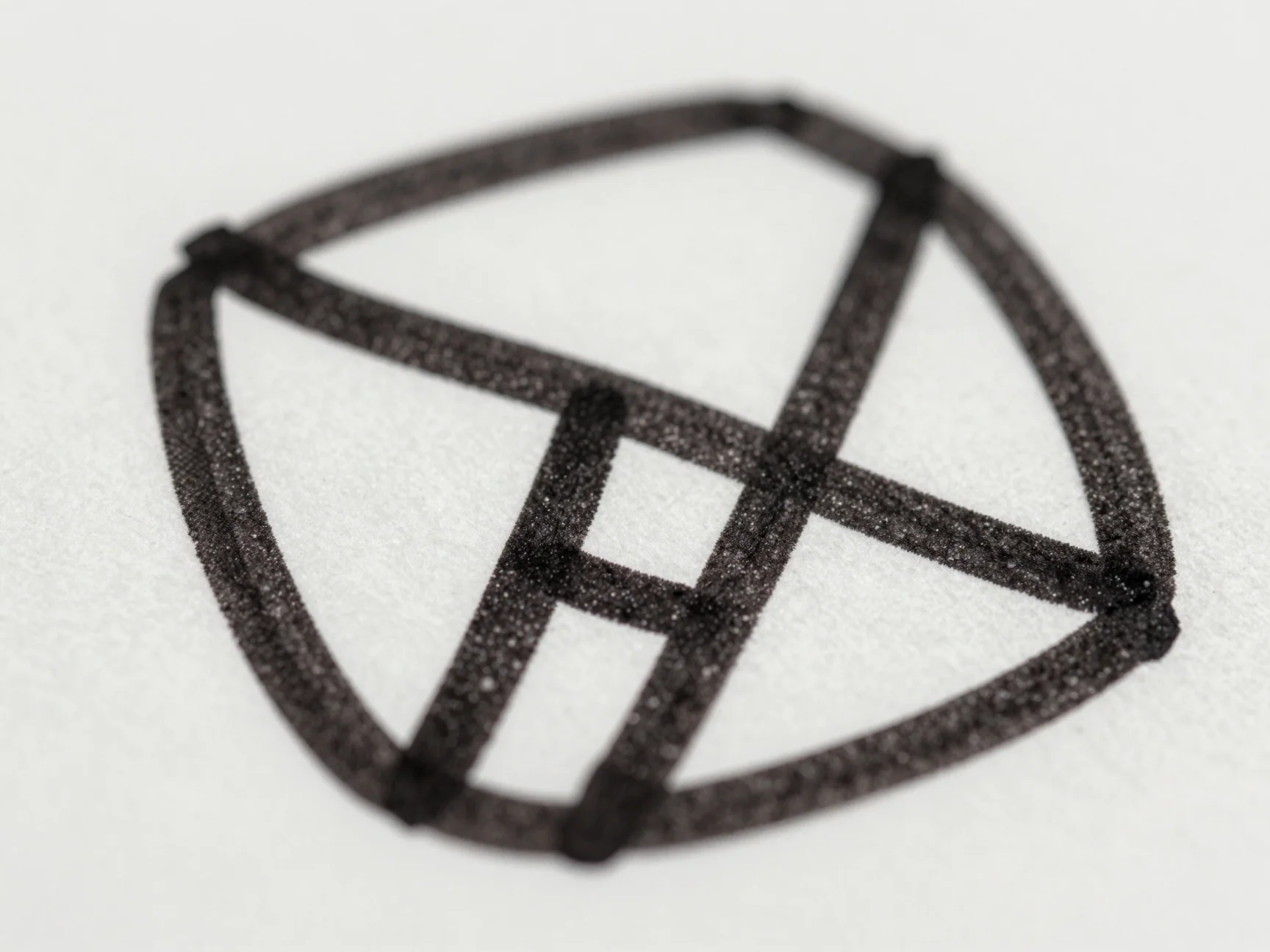
White-pixel removal also affects white areas inside the subject; use it only when that trade-off is acceptable.
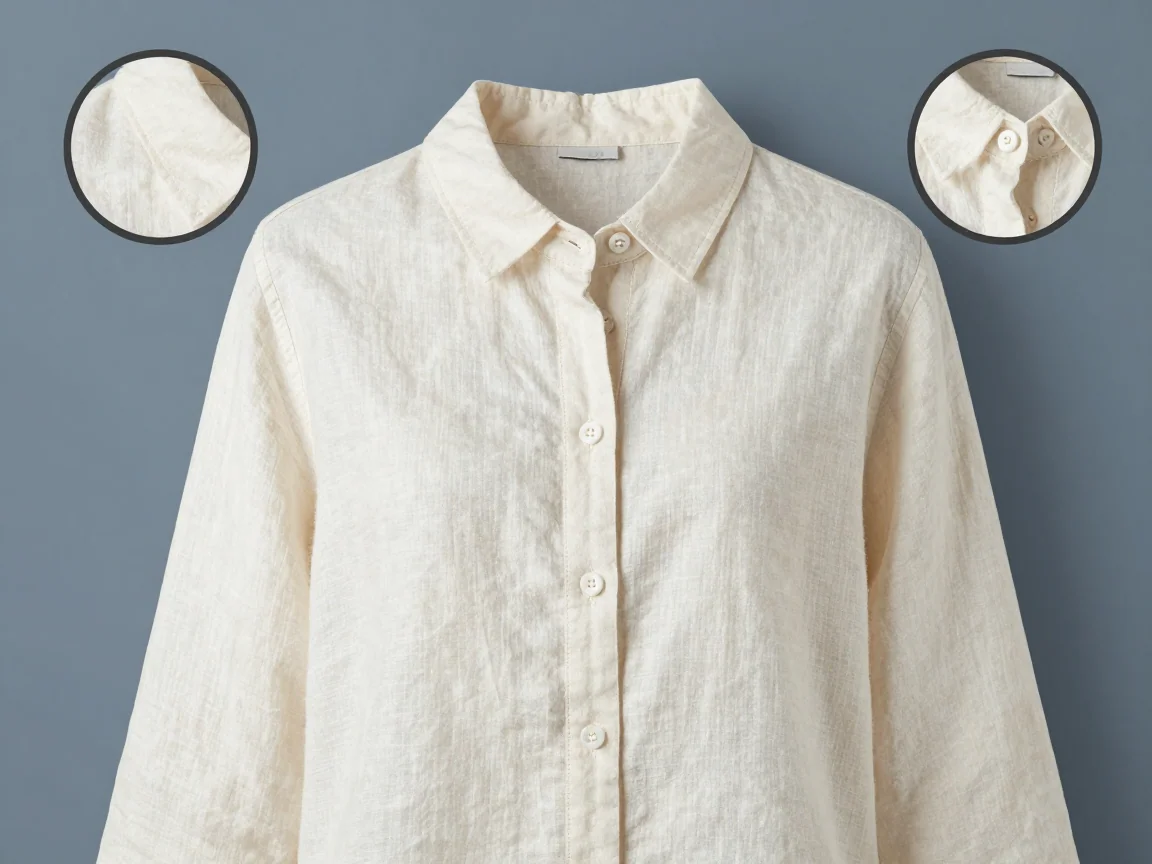
A contrasting preview makes it easier to spot missing pale details and unwanted fringes.
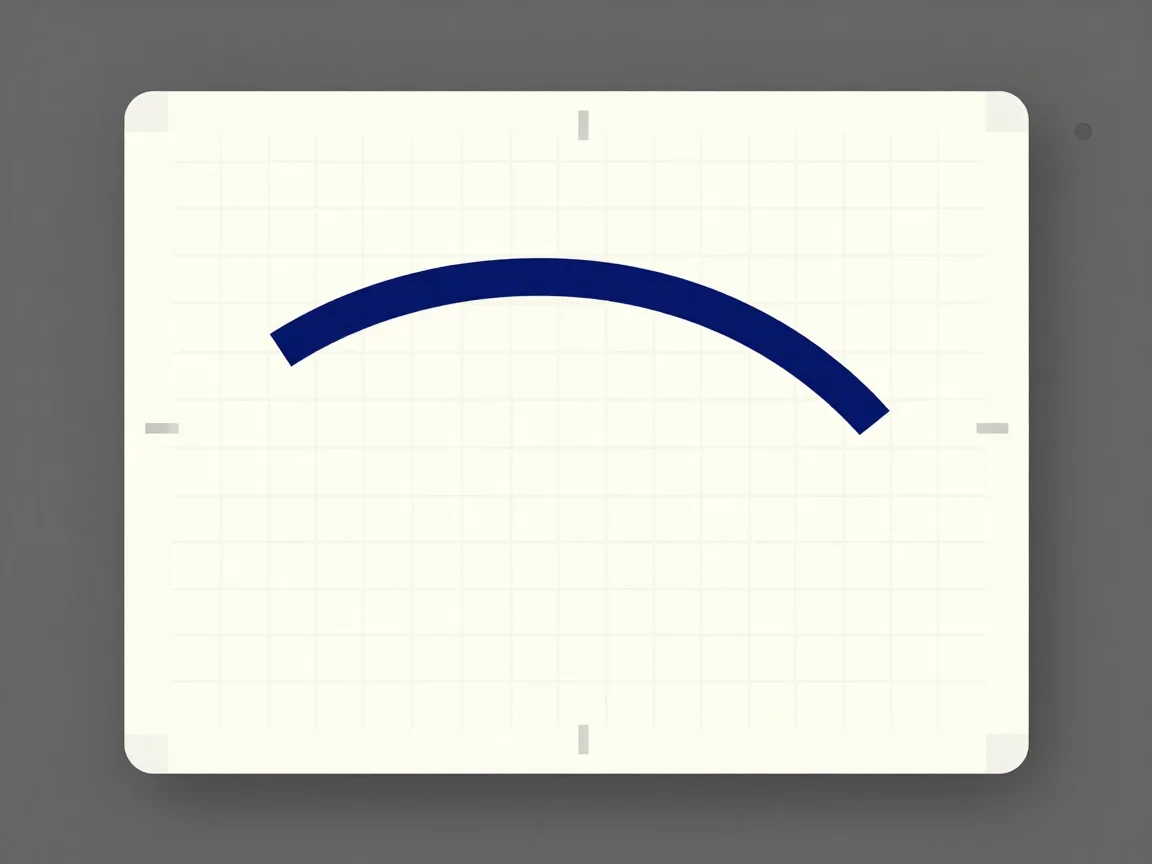
Adjust a local threshold gradually and review which light pixels disappear before downloading.

Make a background transparent, inspect edges on different previews, and download PNG. Review input limits and the trial or credit quote before processing.

Remove a logo background and download PNG. Inspect lettering and enclosed spaces, or use optional local white-pixel removal for suitable simple graphics.
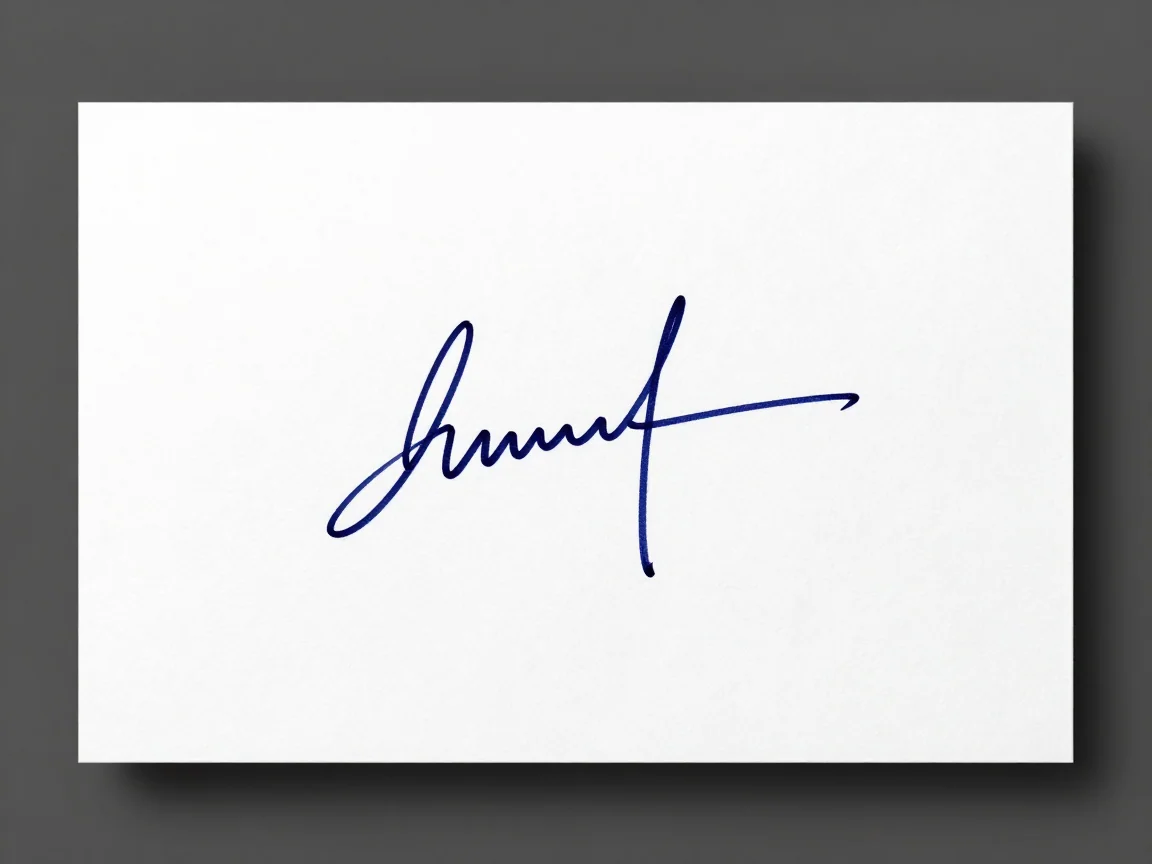
Remove paper backgrounds from signature images. Compare AI and local white-pixel options, inspect thin strokes, and download a transparent PNG.
Practical background removal tips for sharper inputs, difficult edges, white details, and transparent PNG delivery. Learn what to check before a retry.