Image dimensions concept
Check the actual source and returned dimensions rather than relying on the HD label alone.

Use the HD background remover to inspect detail and actual PNG dimensions. Review the quote before processing; background removal does not automatically upscale the image.
Drop an image here, or choose a file
JPG, PNG or WebP · up to 5 MB and 16 MP per imageUploaded images use shareable media links. Avoid uploading sensitive images.
A sharper original makes fine product edges, hair, or lettering easier to inspect. A blurred image on a large canvas still contains blurred source detail. Compare at the viewing size you need rather than relying on a small thumbnail.
AI input must be JPG, PNG, or WebP, up to 5 MB and 16 megapixels, with both sides between 256 and 4096 pixels. Prepare oversized sources before upload. Keep the best suitable original rather than repeatedly saving a lossy screenshot.
Check the actual returned size before download. A custom canvas controls framing, background space, and how the result fits inside the final rectangle. It does not start another model to recreate detail or certify new optical resolution.
Contain fitting preserves proportions. A wider margin can suit a poster or product layout, but reduces the subject’s share of the frame. Check both the whole composition and the detail you need to read.
The HD preset starts with Use credits so you can review a quote before confirming. Payment choice does not promise a more accurate version of the same engine. Check the available trial when you want to evaluate an image before another paid request.
Cloud processing uploads the image and uses shareable media links, so avoid confidential material. Fine hair, glass, reflections, and pale edges still need inspection; the HD label is not a guarantee of perfect separation.
Upload size, queue conditions, and the image affect processing time. Keep the page open while uploading and follow the status. A request being checked is not proof that no task was created.
Read the error for a confirmed failure and correct the source or settings before retrying. Insufficient credits requires an available trial or added credits before a new paid task. A finished cutout can be reframed and downloaded locally without another removal request.
Choose your best source within AI file limits. Do not expect missing lettering or texture to be recreated.
Confirm the current processing price and follow the status while waiting.
Compare original and result, check important edges, and read the actual returned size.
Preserve proportions, select transparency or a fill, and test the downloaded image in its destination layout.
No. A larger export canvas or an enlarged preview cannot recover absent detail. Check original dimensions, returned image dimensions, and the final canvas separately.
Payment choice is not a quality guarantee. It determines whether a request uses available trial processing or the confirmed credit price. Inspect the actual result instead of assuming a label creates extra detail.
The original may not contain enough sharp detail for that viewing size, or the edge may be difficult. Compare at the same scale. A sharper source can help more than placing the same small image on a larger canvas.
Local canvas, margin, color, and download changes use the existing finished image. A new AI removal request is separate and should be reviewed against the current allowance or quote.
Check the actual source and returned dimensions rather than relying on the HD label alone.
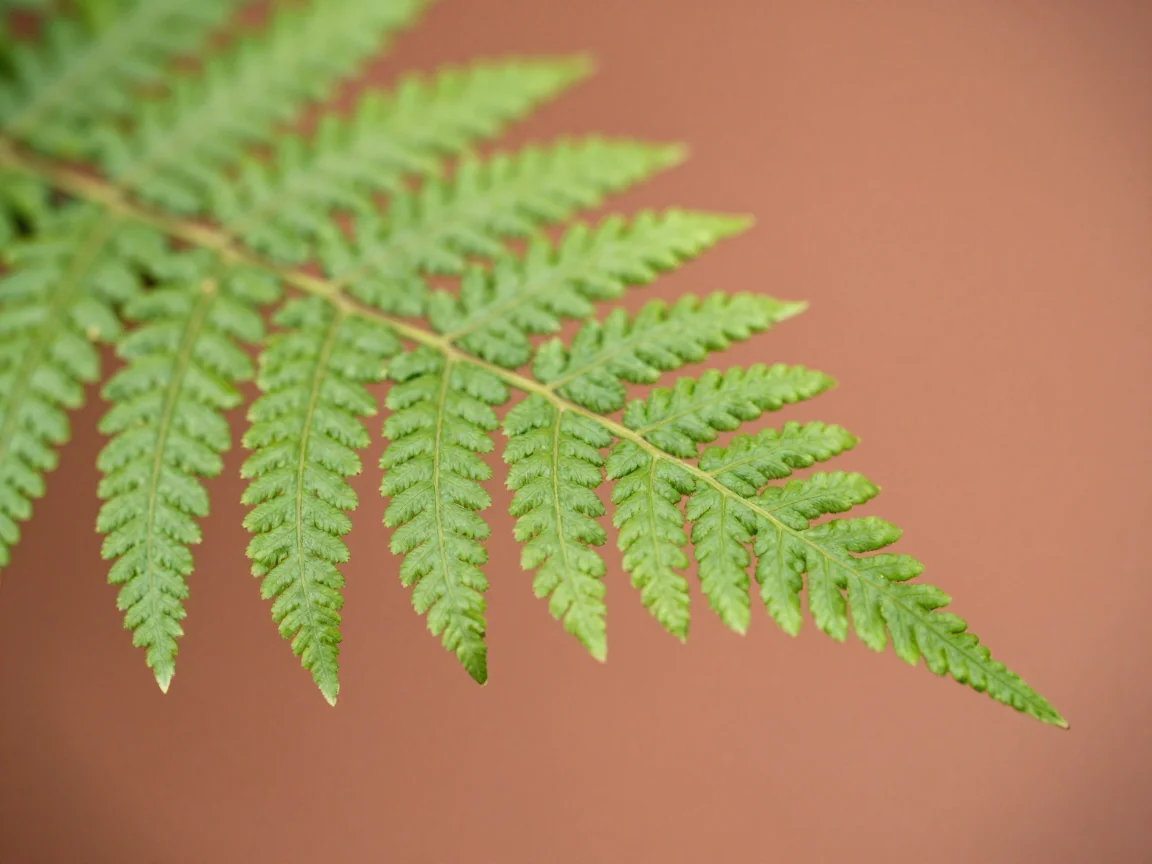
A sharp original provides more useful detail to inspect than an enlarged blurry image.

Inspect detail at a useful viewing scale before choosing your download canvas.
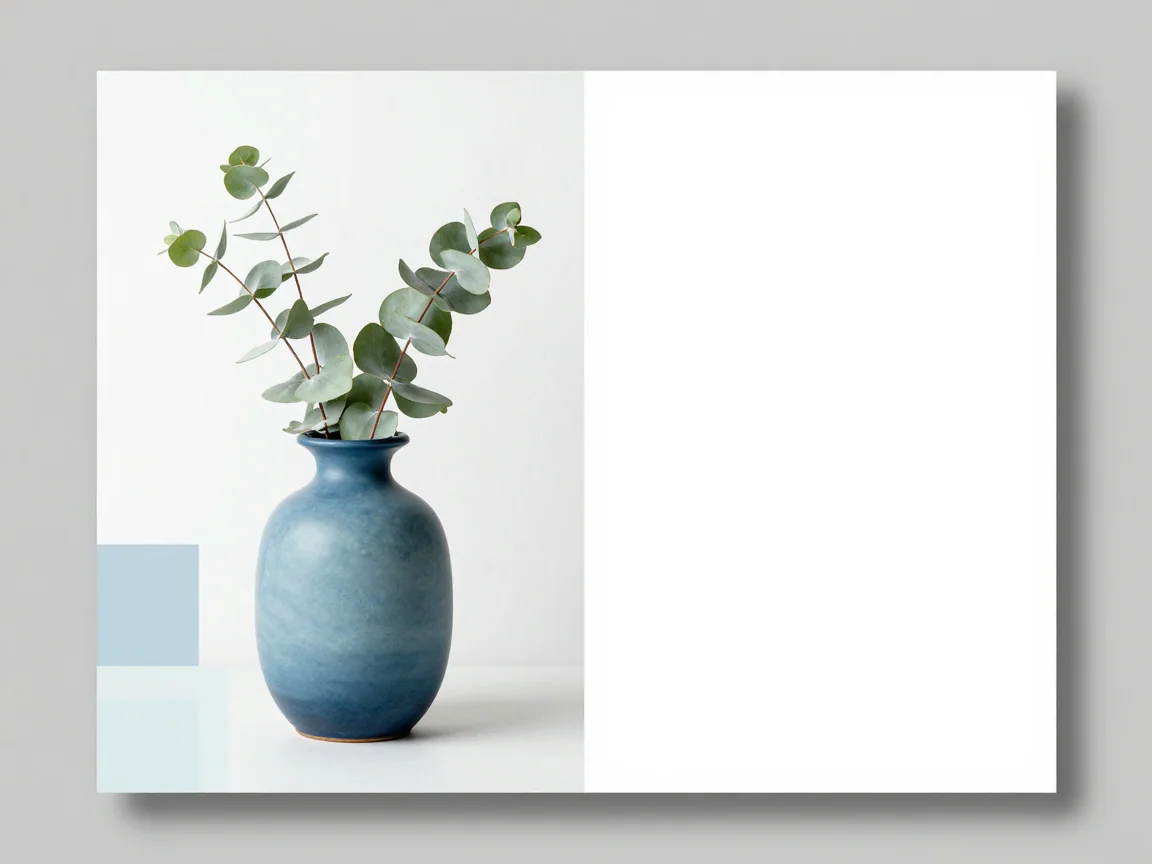
A larger canvas adds space around the image; it does not recover missing source detail.
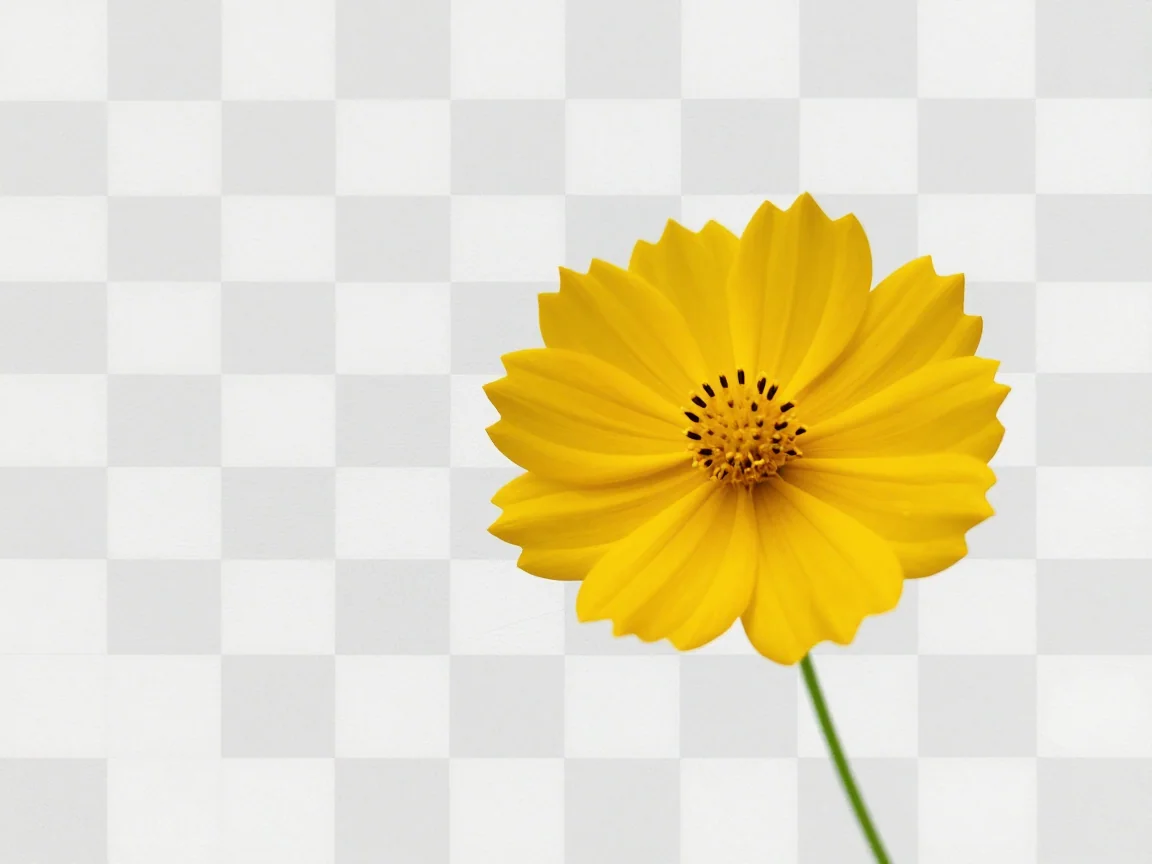
Make a background transparent, inspect edges on different previews, and download PNG. Review input limits and the trial or credit quote before processing.
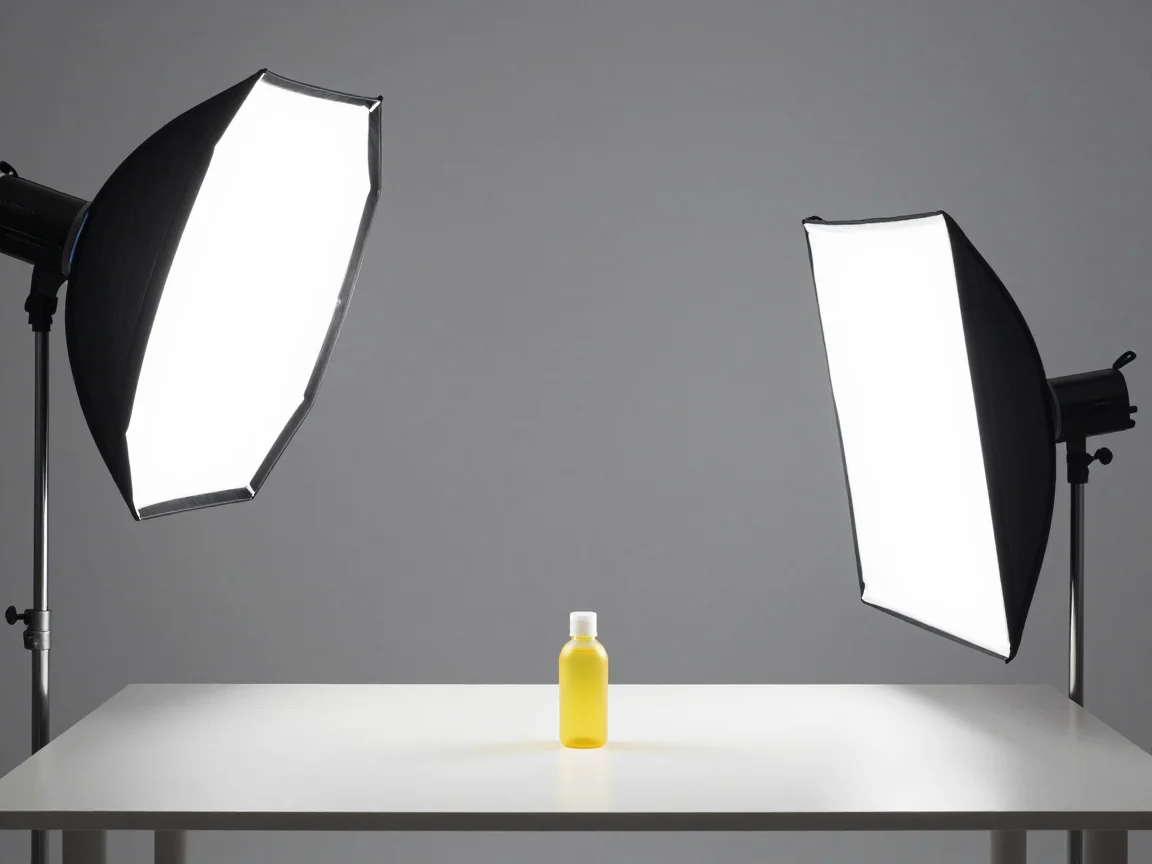
Practical background removal tips for sharper inputs, difficult edges, white details, and transparent PNG delivery. Learn what to check before a retry.
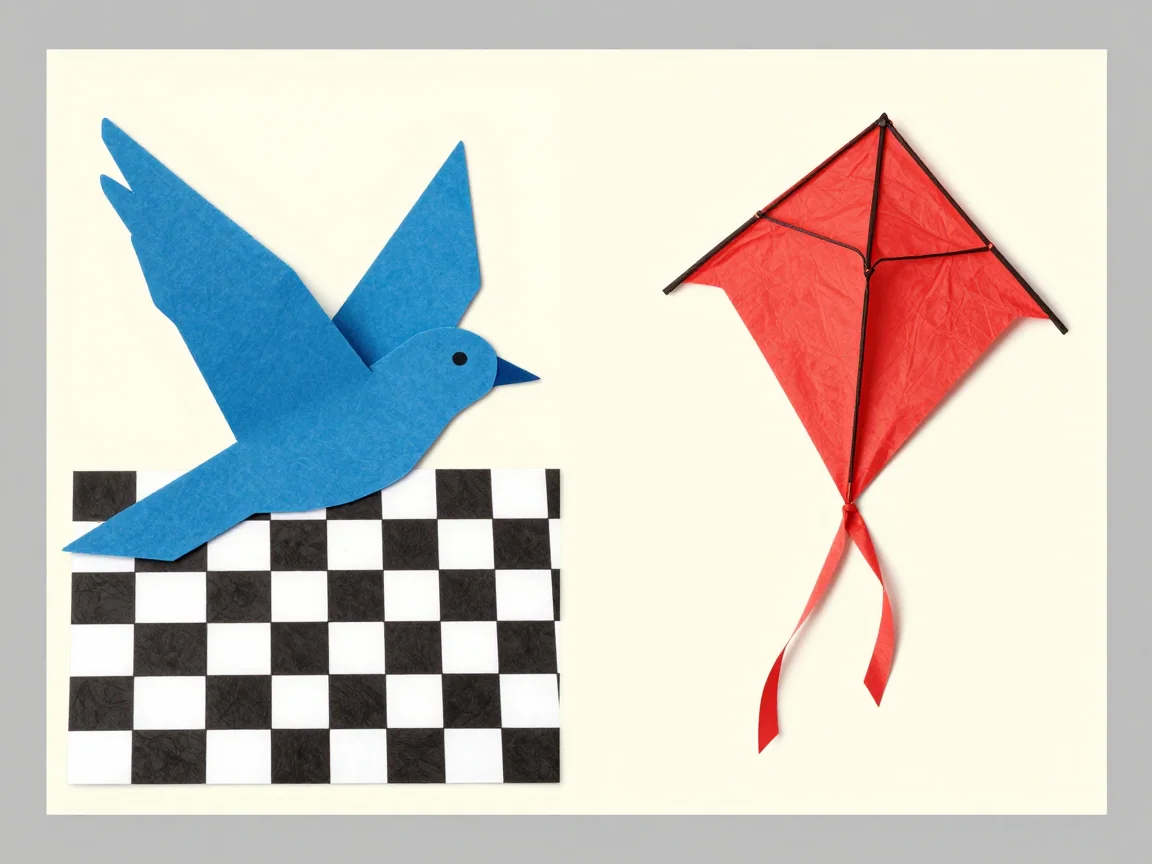
Compare transparent PNG vs JPG for cutouts and design placement. Learn what a checkerboard means, how solid backgrounds differ, and what this tool downloads.
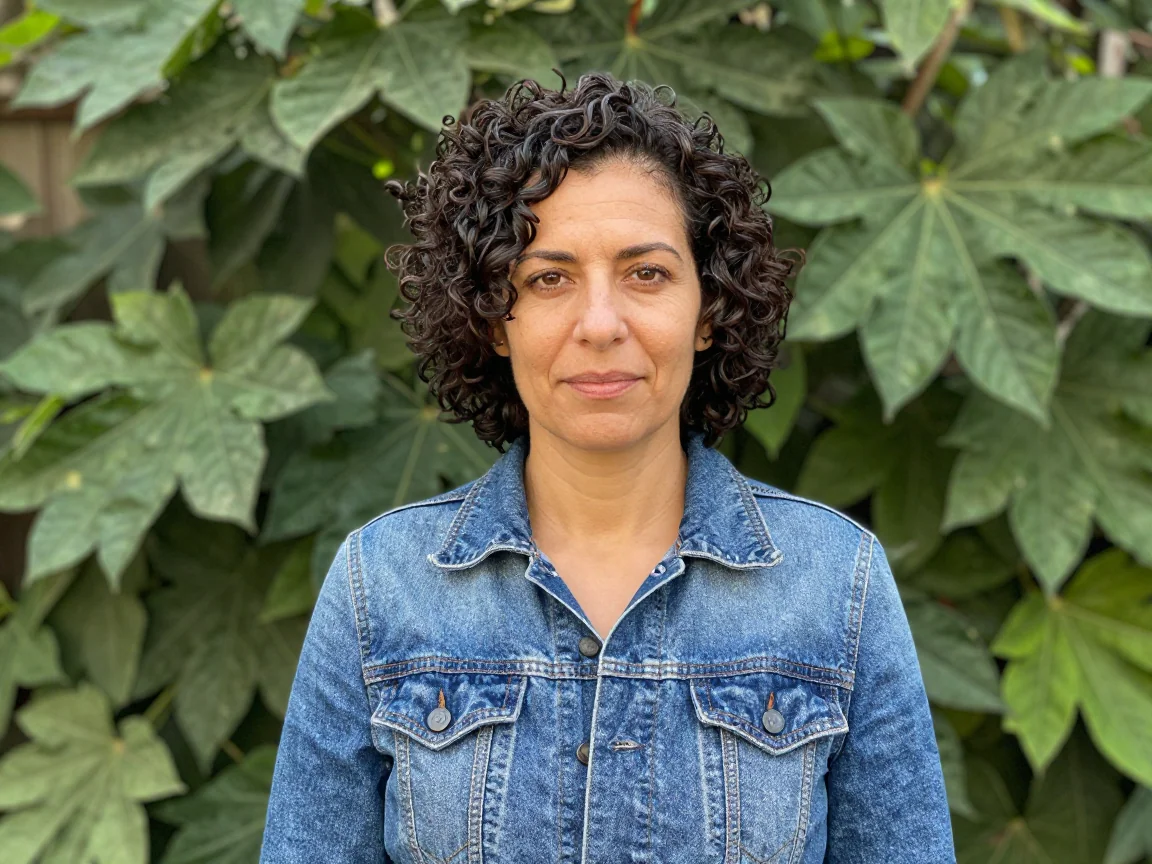
Use BG Remover to remove a photo background and download PNG. Check the free trial allowance, compare the result, and review credit pricing before processing.