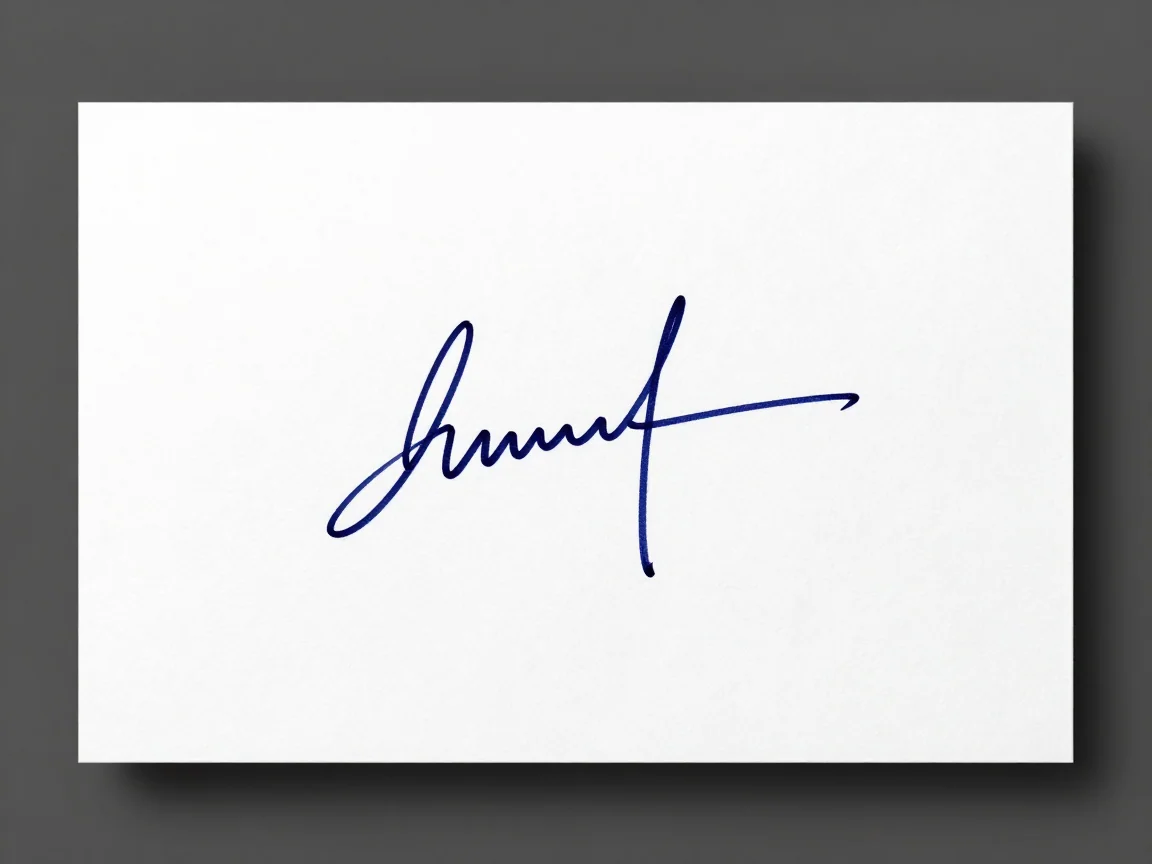
Fictional signature input
Use a clear signature image with room around the first and last strokes.

Remove background from signature images and inspect thin strokes before saving PNG. Choose AI or a suitable local threshold; this prepares an image, not signature authentication.
Drop an image here, or choose a file
JPG, PNG or WebP · up to 5 MB and 16 MP per imageUploaded images use shareable media links. Avoid uploading sensitive images.
Use even light and keep the entire mark inside the frame, including the first stroke, lower loops, and tail. Leave a little surrounding paper. Blurred screenshots and cropped pen strokes provide less useful information than a sharp original.
AI input must be JPG, PNG, or WebP, up to 5 MB and 16 megapixels, with each side between 256 and 4096 pixels. A small simple signature can instead suit the local white-pixel method, which accepts smaller sources within its displayed local limits.
AI can be useful for shadows and uneven paper backgrounds, but faint ink or paper texture can still confuse the edge. Preserve the original and inspect the result.
The local method removes pixels at or above a white threshold on your device. It does not recognize signature strokes. Lower values remove more light pixels and can erase faint ink. Preview the setting before deciding it is useful.
Zoom into crossings, loops, long tails, and light pressure marks. Compare with the original on light and dark previews. A clean paper area is not useful if handwriting has disappeared.
Choose transparent PNG for placement over another background. White export fills empty areas but cannot restore a missing stroke. This tool does not certify signatures, create a legal signing workflow, vectorize handwriting, or automatically meet a form’s file-size limit.
Only prepare signature images you are entitled to use. Cloud processing requires an upload with shareable media links. Someone holding a public link may be able to view it, so avoid confidential or sensitive signature material. Local white-pixel removal does not upload or spend AI credits.
For cloud AI, review the available trial or credit quote and follow the status. There is no fixed waiting time. Correct input errors before retrying; wait for uncertain submissions to resolve instead of sending repeated requests.
Keep every stroke visible, reduce unnecessary desk area, and retain the original.
Use AI for subject separation or a local white threshold for an appropriate simple light background.
Check loops, crossings, tails, and faint ink against the source before selecting transparency.
Place it in the intended layout. Confirm the receiving form’s actual dimensions and file-size rules separately.
Yes, the optional white-pixel method runs locally without AI credits. It can remove faint ink and pale subject pixels as well as paper, so inspect the preview and preserve your original.
The source may be blurred or faint, or a threshold may remove useful pixels. Compare the original and choose a setting that preserves the strokes. A sharper source can help more than repeated processing of an unclear image.
Not automatically. This page is not a 20 KB compressor or a guarantee of form acceptance. Check the form’s format, pixel dimensions, and file-size requirements.
No. It is an image asset from your source. The tool does not authenticate identity, establish consent, certify a document, or replace an electronic-signing service’s requirements.
Use a clear signature image with room around the first and last strokes.

Zoom in to check that faint lines and small loops remain visible.
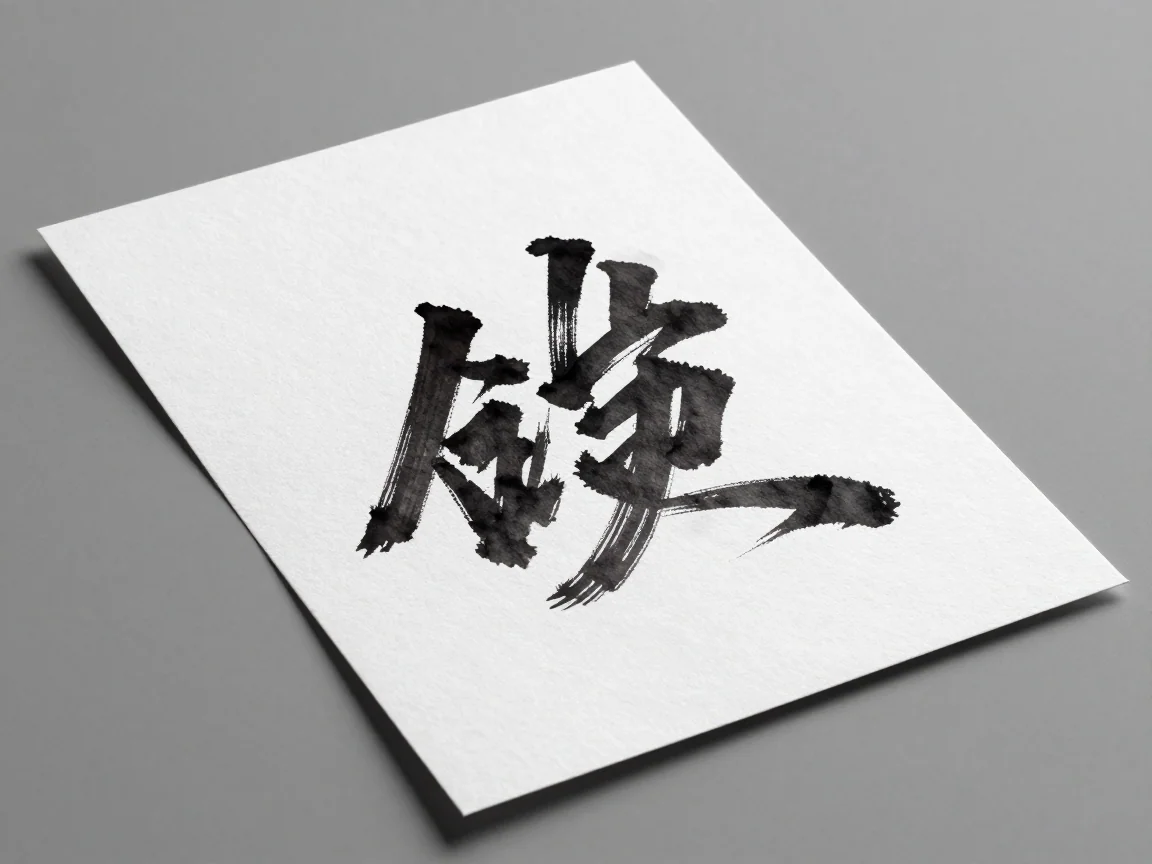
Paper shadows and faint ink can make background removal harder.
A transparent PNG is an image asset; it does not certify a signature or guarantee a form will accept the file.

Remove white background with AI or optional local white-pixel removal. Inspect pale subject details, preview transparency, and download PNG.

Make a background transparent, inspect edges on different previews, and download PNG. Review input limits and the trial or credit quote before processing.

Compare transparent PNG vs JPG for cutouts and design placement. Learn what a checkerboard means, how solid backgrounds differ, and what this tool downloads.
Practical background removal tips for sharper inputs, difficult edges, white details, and transparent PNG delivery. Learn what to check before a retry.