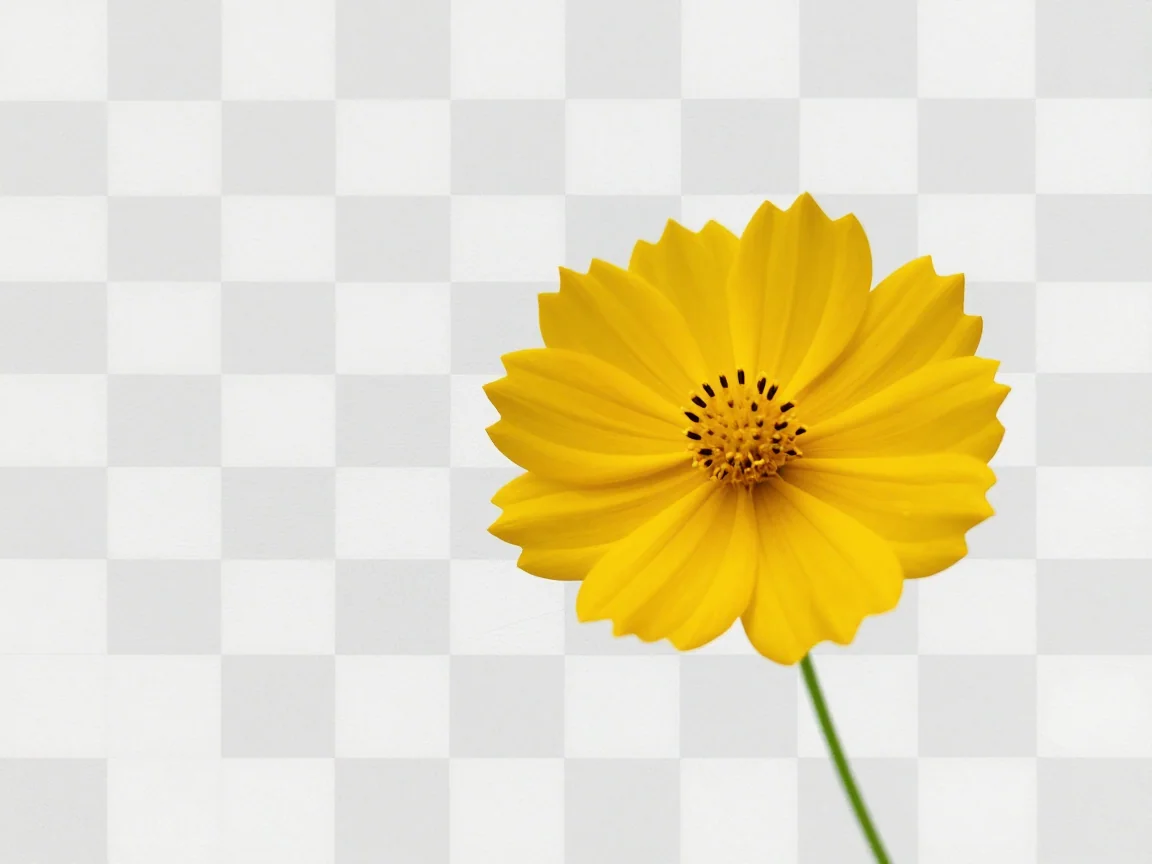
Transparent area concept
The checkerboard is a preview aid; it is not a pattern added to the transparent PNG.

Make a background transparent, compare the subject edge, and download PNG. Choose transparent export when another layout should show through.
Drop an image here, or choose a file
JPG, PNG or WebP · up to 5 MB and 16 MP per imageUploaded images use shareable media links. Avoid uploading sensitive images.
A checkerboard is a preview convention for transparent areas. It is not a pattern printed into a transparent PNG. When you place the file over another design, that design should show through the transparent pixels.
Some viewers put a white or dark surface behind transparent files. A white-looking preview elsewhere does not prove the file is opaque. Test it on the intended background and inspect the alpha edge.
Use light and dark previews to inspect fringes and missing details. The preview is an inspection choice. The export background setting determines whether the downloaded PNG preserves transparency or contains a solid fill.
PNG can hold opaque and partly transparent pixels, which can represent soft edges. It does not guarantee that every hair, reflection, or transparent material is separated correctly. Compare with the original when those details matter.
AI removal accepts one JPG, PNG, or WebP up to 5 MB and 16 megapixels, with both sides between 256 and 4096 pixels. Choose the sharpest source available. Background removal does not redraw a blurred subject or automatically enlarge a small photo.
Check the Free trial allowance or Use credits quote before confirming. Payment availability does not guarantee different edge accuracy. Cloud uploads use shareable media links, so avoid confidential images and keep your source copy.
Place the finished image over the color you actually need and look for a halo less visible on another preview. Inspect holes, lettering, hair, and pale edges at a useful scale.
Processing time varies with upload and queue conditions. Follow the status and wait while a submission is being checked. Retry a known failure after reading its reason. Changing the background or downloading a finished result does not require another AI removal.
Use a clear image within the AI limits and keep a source copy.
Review allowance and price before starting cloud processing.
Compare the original and result, checking important boundaries on both light and dark backgrounds.
Keep transparent export selected when the destination should show through, then test the downloaded file there.
The viewer may be showing white behind transparent pixels. Test the file over a colored shape or the destination design. A solid export background is different: it intentionally fills the image pixels.
No. Downloads are PNG. JPEG cannot preserve transparency, while PNG can hold transparency or a solid background. The format guide explains this difference without implying JPEG export is available.
A source that is already transparent can be reframed locally. Suitable white graphics can use the optional local white-pixel method on the white-background page. That threshold can remove white subject details, so inspect its preview.
No. The format stores the cutout you prepared. It cannot correct a bad separation. Recheck the original, try contrasting previews, and use a better source or another suitable method if a detail is missing.
The checkerboard is a preview aid; it is not a pattern added to the transparent PNG.
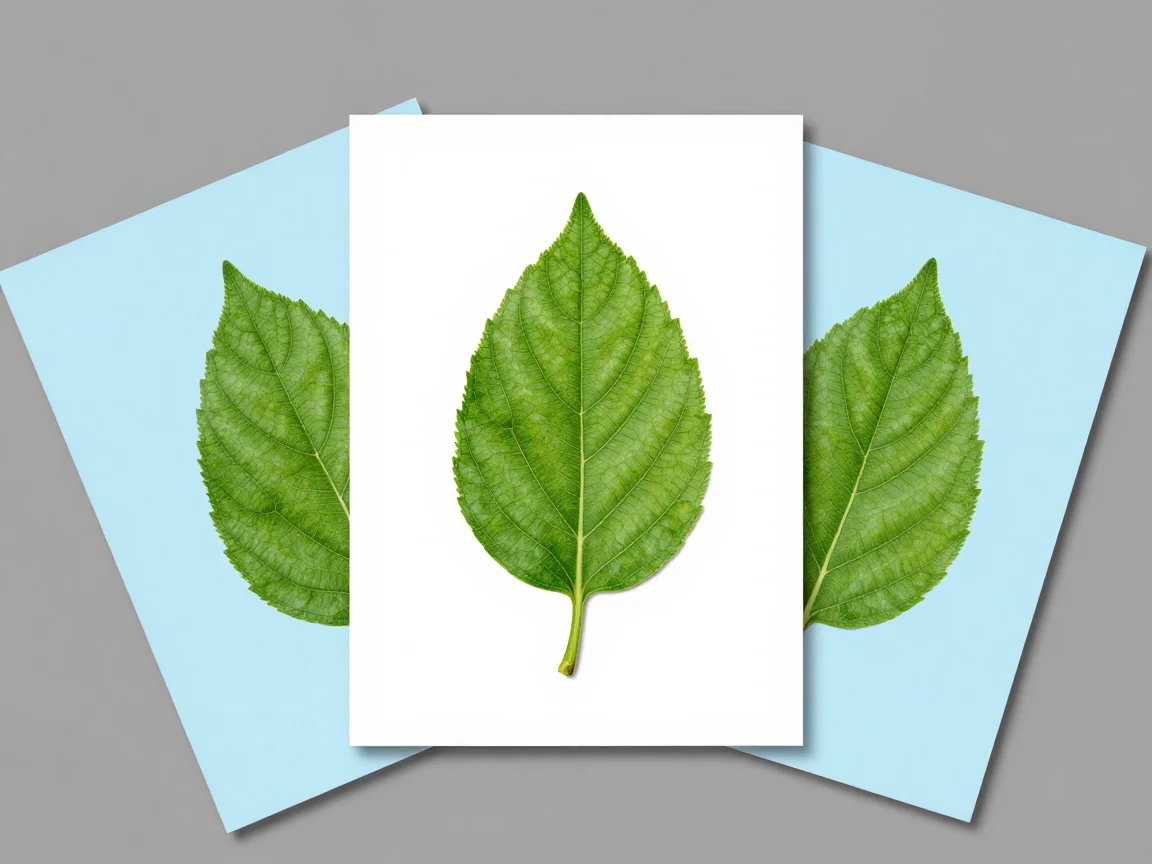
Keep transparency when the subject needs to sit over another design.
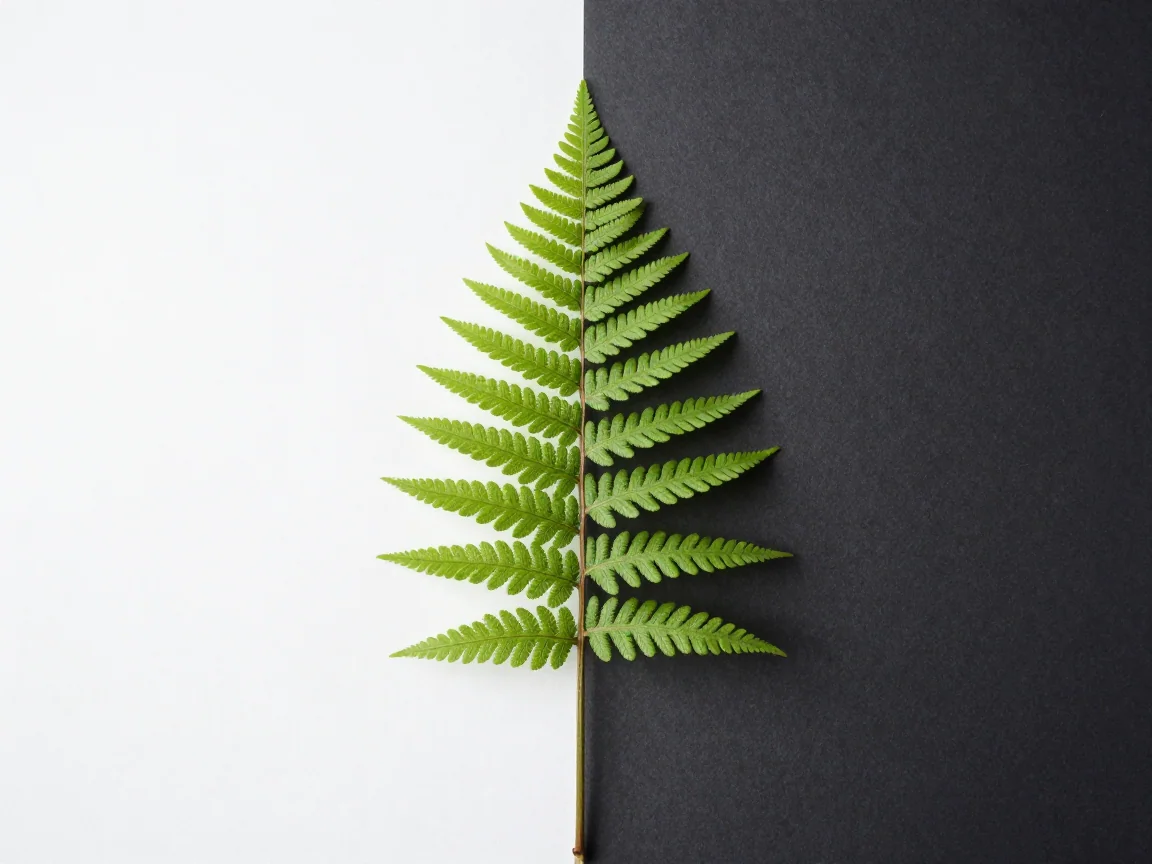
Review the edge on more than one preview background before export.
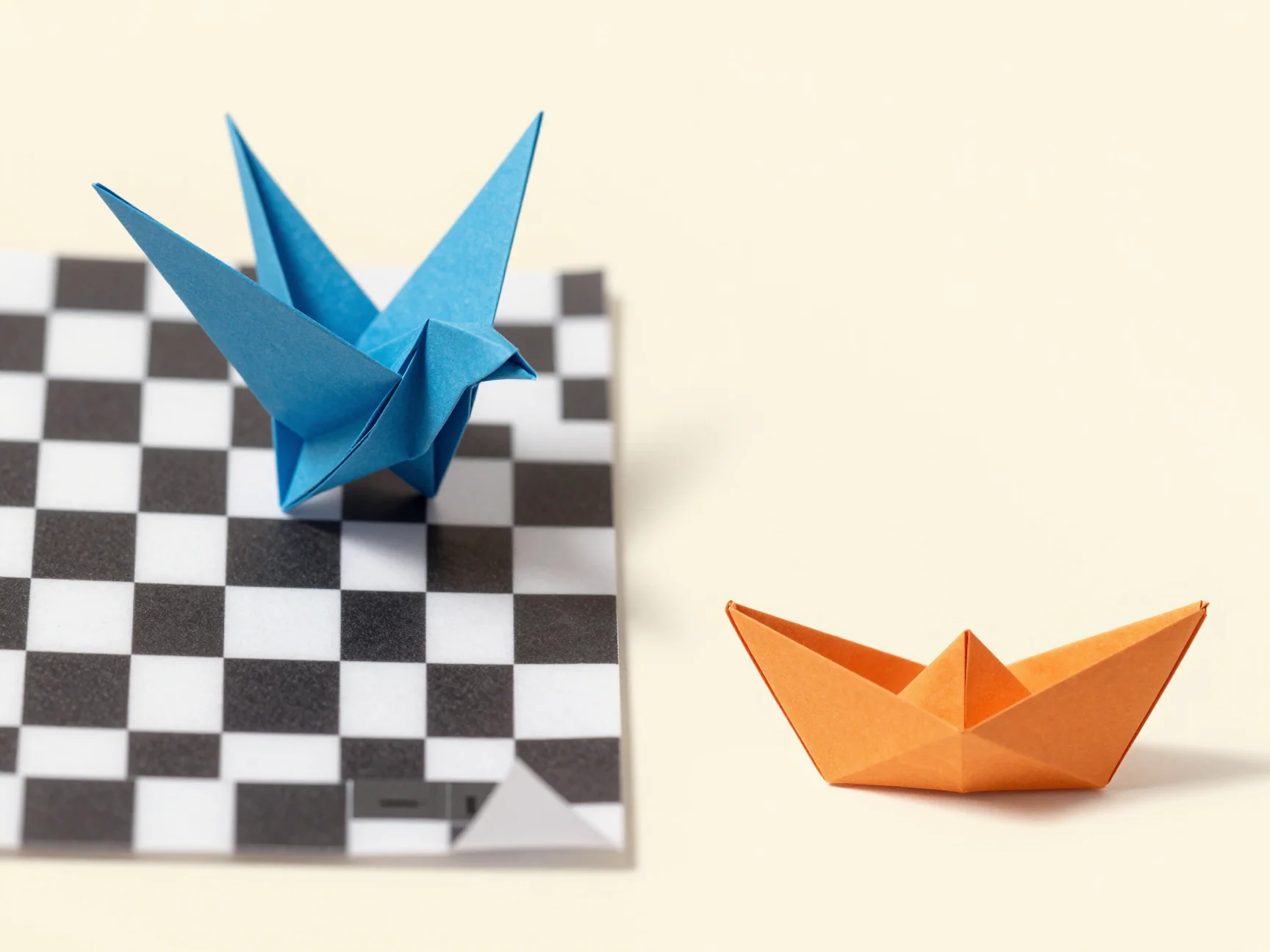
The same PNG format can hold transparent areas or your chosen solid background color.

Compare transparent PNG vs JPG for cutouts and design placement. Learn what a checkerboard means, how solid backgrounds differ, and what this tool downloads.
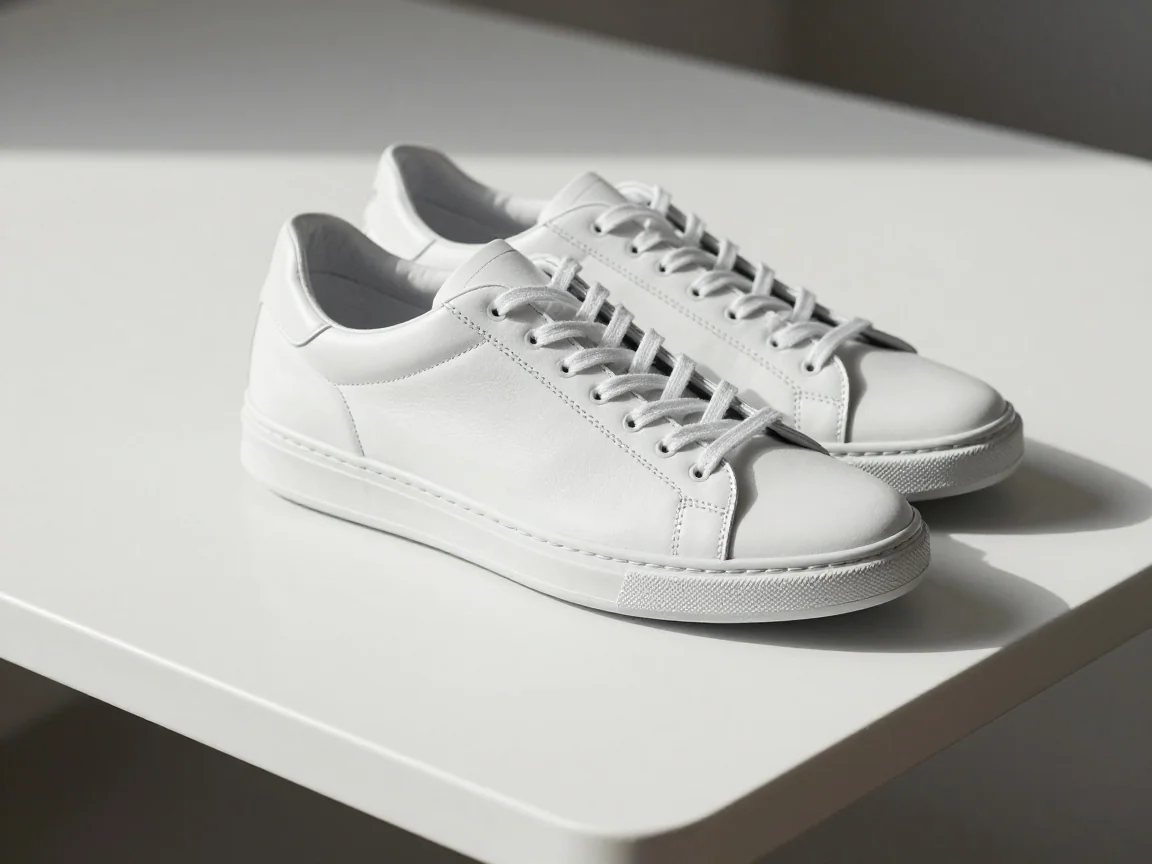
Remove white background with AI or optional local white-pixel removal. Inspect pale subject details, preview transparency, and download PNG.
Remove a logo background and download PNG. Inspect lettering and enclosed spaces, or use optional local white-pixel removal for suitable simple graphics.
Use the HD background remover to inspect source detail and actual PNG dimensions. Review the quote and limits; background removal does not upscale images.