
Transparent PNG vs JPG: Understand the Background
Compare transparent PNG vs JPG for cutouts and design placement. Learn what a checkerboard means, how solid backgrounds differ, and what this tool downloads.
The important difference in transparent PNG vs JPG is whether the image can keep transparent pixels. PNG can store transparency; JPEG does not. BG Remover downloads PNG, with either transparency or a solid color you choose. Use this guide to decide what belongs in that PNG and how to test it in another layout.

Transparency is stored in image data; a solid backdrop is part of the visible picture.
Transparent PNG vs JPG for reusable cutouts
Transparent areas let the background of another layout show through. Editors often display a checkerboard to make empty space visible. The checkerboard is an inspection aid; it should not become a pattern inside a correctly exported transparent PNG.
A viewer may put white or dark gray behind a transparent file. That display alone does not reveal whether the file has transparency. Test it over a colored shape or photograph in the destination application.
PNG and JPEG answer different format needs
PNG can store an alpha channel with fully transparent and partly transparent pixels. That is useful when a subject needs to sit over a presentation, poster, product layout, or another image without carrying its old backdrop.
JPEG stores a filled image without an alpha channel. A light background in JPEG is a visible part of the picture. This tool does not export JPEG; selecting white here still produces PNG. Check the destination’s format rules separately.
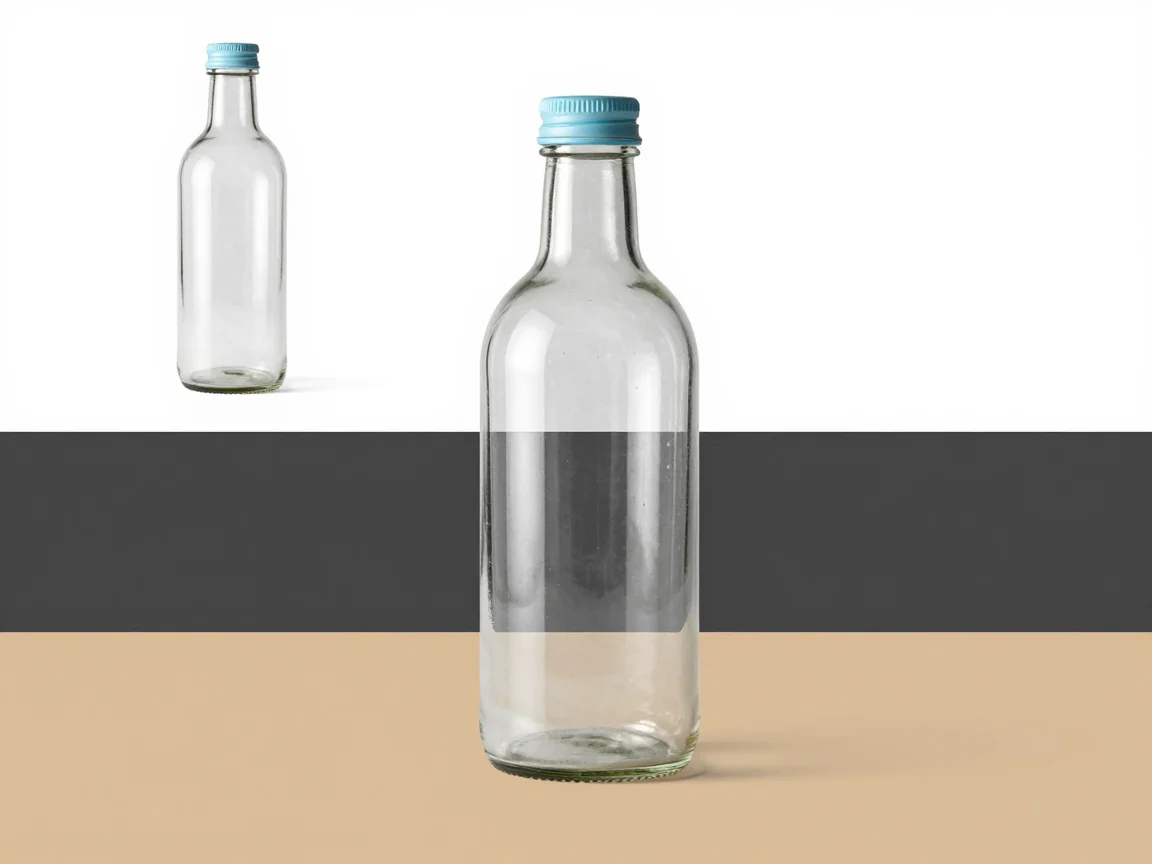
A preview on one background may hide edge problems that another background reveals.
Choose a transparent or filled PNG deliberately
Choose transparency when the destination should supply the background. Choose a solid color when it should be part of the delivered file. PNG can hold either, but they behave differently over another design.
Preview and export settings have different jobs. A dark preview can reveal a pale halo; a light one can expose a dark fringe. The export background decides what is saved. Do not assume the last inspection color is the final background you wanted.
Inspect the cutout before judging the format
A format cannot repair an inaccurate edge. Compare original and result, checking lettering, hair, holes, and pale details on contrasting colors. An unwanted fringe may become obvious when a cutout moves from a light layout to a dark one.
For AI removal, use a clear JPG, PNG, or WebP within the displayed 5 MB, 16-megapixel, and 256–4096-pixel-per-side limits. Review trial availability or the credit quote before starting. Upload and queue conditions affect the wait, so follow task status instead of a fixed time estimate.
Test the file at the destination
Before sharing the PNG, place it at the intended size on the actual background. Check the complete subject and fine edges. A larger canvas changes the frame; it cannot recover sharp detail from a small original. Keep the source alongside the prepared file.
If a destination demands another format or a file-size limit, confirm those requirements separately. This workflow prepares PNG images; it does not guarantee acceptance by a form, marketplace, presentation application, or print service.
Recognize the background your file contains
Checkerboard meaning
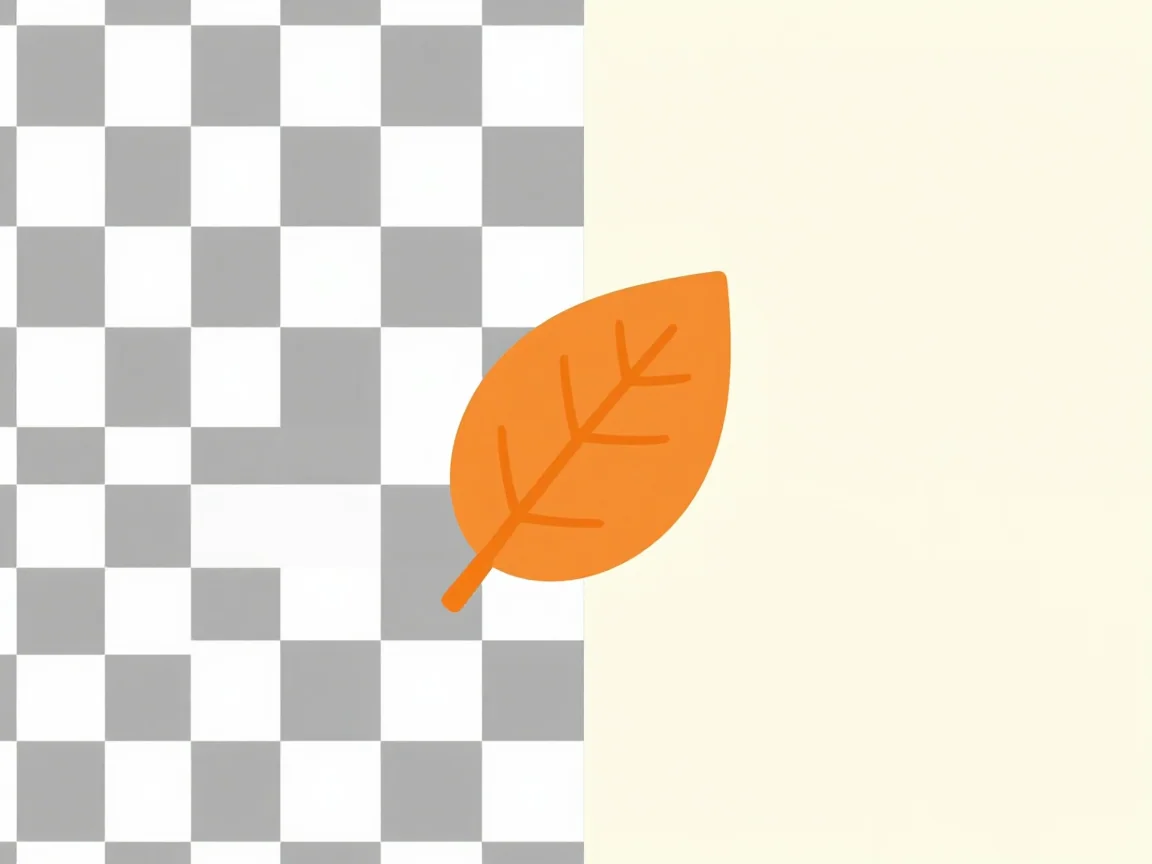
A checkerboard usually marks transparent space in an editor rather than a background printed into the file.
Choose for the next task
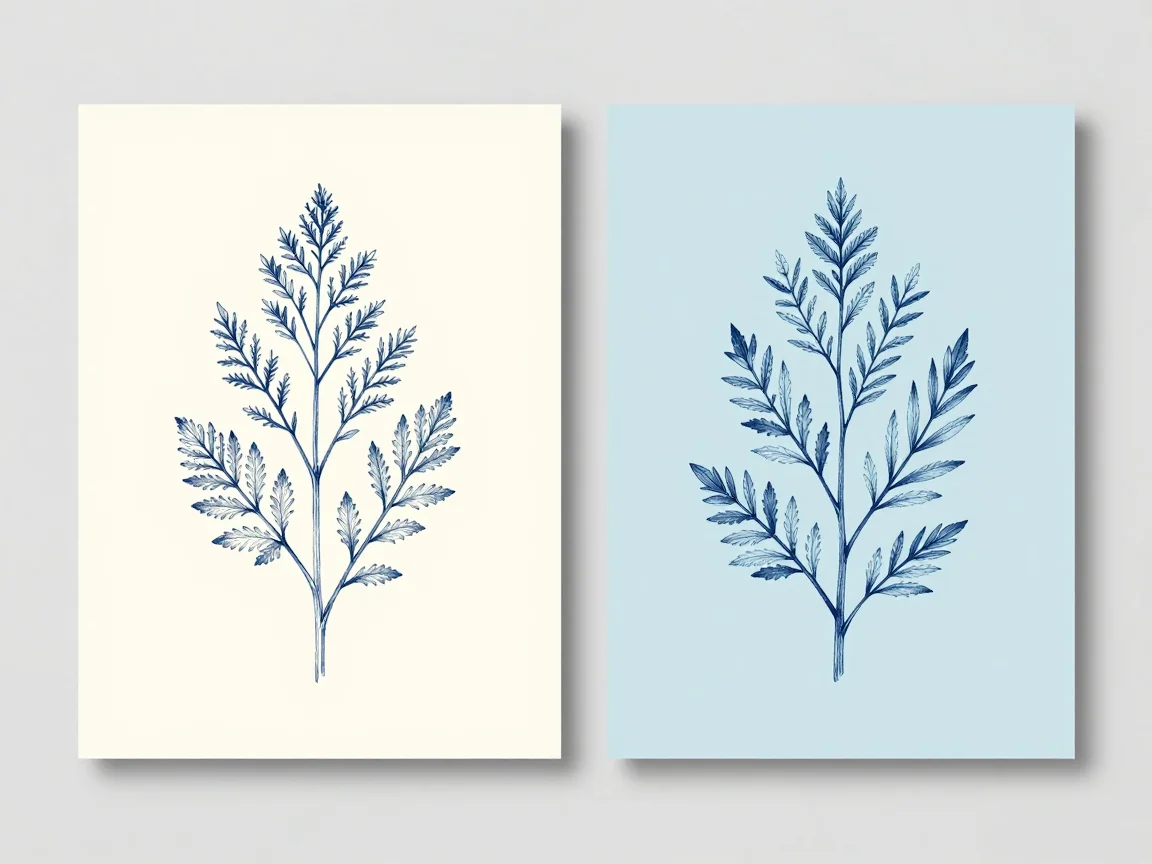
Choose the image format and background to suit the destination where the file will be used.
Frequently asked questions
Does a white preview mean the PNG is not transparent?
Not necessarily. Some viewers put white behind transparent pixels. Test the file over a colored shape or the destination design and confirm that transparent export was selected.
Can a PNG have a solid background?
Yes. PNG supports transparency, but can also contain a white or custom solid background. The selected export setting determines what is saved.
Should I choose JPG inside this tool?
The tool exports PNG. JPEG is discussed to explain its transparency limitation, not as an available download. If another service needs JPEG, prepare that format in a suitable separate workflow.
 Make Background Transparent for a Reusable PNG — Make a background transparent, inspect edges on different previews, and download PNG. Review input limits and the trial or credit quote before processing.
 Remove White Background from an Image — Remove white background with AI or optional local white-pixel removal. Inspect pale subject details, preview transparency, and download PNG.
 HD Background Remover with Honest Dimension Checks — Use the HD background remover to inspect source detail and actual PNG dimensions. Review the quote and limits; background removal does not upscale images.
 Background Removal Tips That Start with the Original — Practical background removal tips for sharper inputs, difficult edges, white details, and transparent PNG delivery. Learn what to check before a retry.