AI 3D Figure Generator
Explore a related image-creation guide for figure concepts.

Use MiniMax H3 Image to create an uncluttered product scene from words or make a focused change to one supplied photo. Start with a complete product brief, then review the cap, handle, matte texture and contact shadow. For reference edits, ask for one wall-color change while protecting the original subject and setting.
Choose Text to Image for a new scene from an editable prompt; it needs no upload. Choose Image to Image when you want to edit one actual reference photo. Select Minimax H3 Image from the model menu, which also contains other available models.
Name the product, its visible features, its position, the surface, background, framing, and lighting. For a flask, explicitly request a simple rounded cap, plain loop handle, smooth matte body, full visibility, and a believable contact shadow. Keep the setting uncluttered and exclude unwanted writing or props.
Prepare one clear, actual reference image. State the single change you want, then say what must remain: its own subject, shape, proportions, position, materials, colors, layout, and lighting. For example, request a wall-color change only. Do not substitute the sample flask for the reference subject. Automatic cutout is a separate tool.
Inspect the whole image, then review edges, proportions, material, light, contact shadows and unwanted lettering. Before generating, check the current Required Credits for your model, aspect ratio and resolution. This model uses paid access. Follow status and ready images in History; check the new quote before submitting another version.
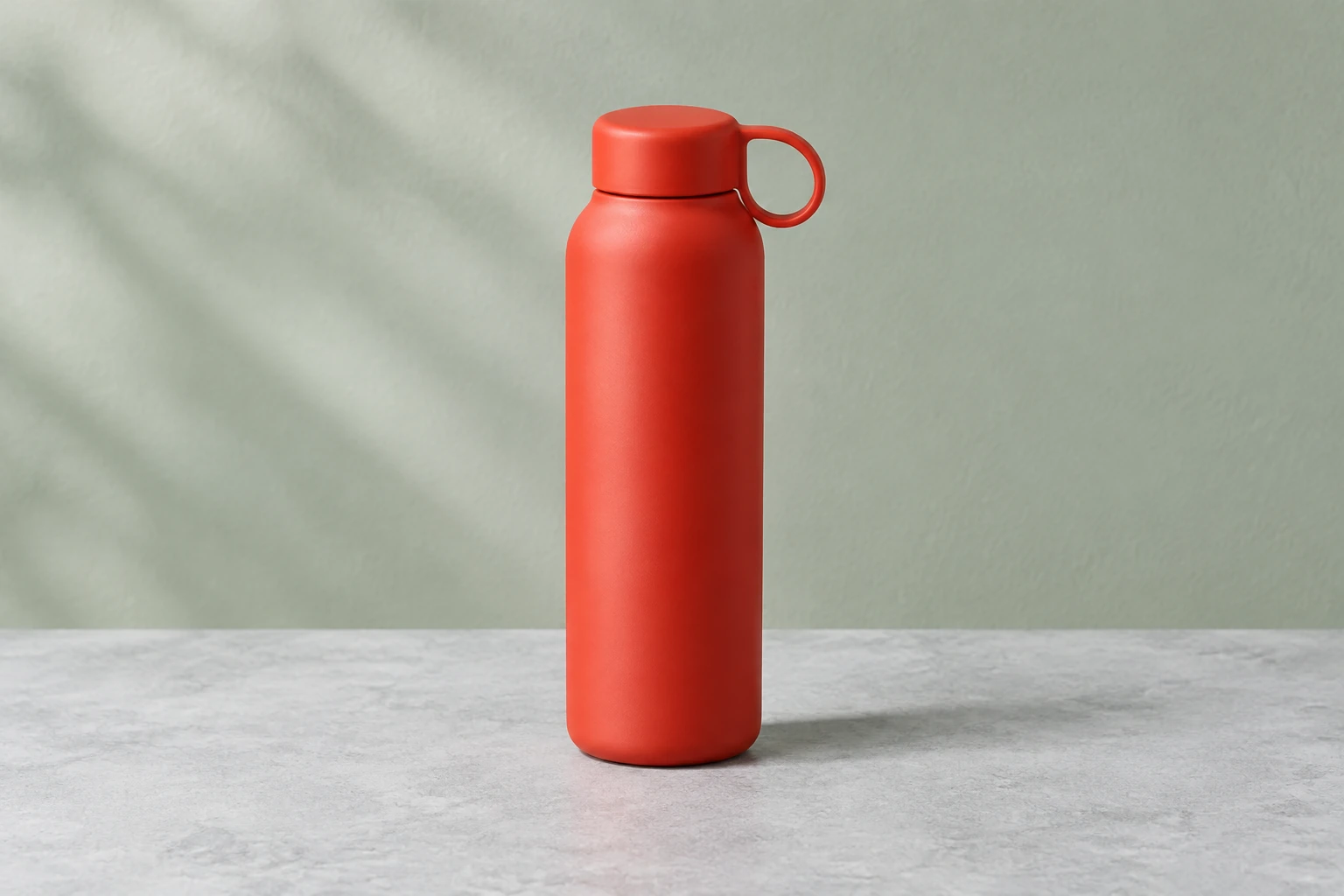
Think through the frame before generating: keep the product fully visible, give its silhouette room, and avoid competing objects. The sample scene pairs a matte vermilion insulated flask with pale cool-gray stone and a softly lit sage wall. Ask for one plausible contact shadow rather than a floating product or a distracting dark patch. Review whether the cap sits straight, the loop handle reads clearly, and the surface looks matte.
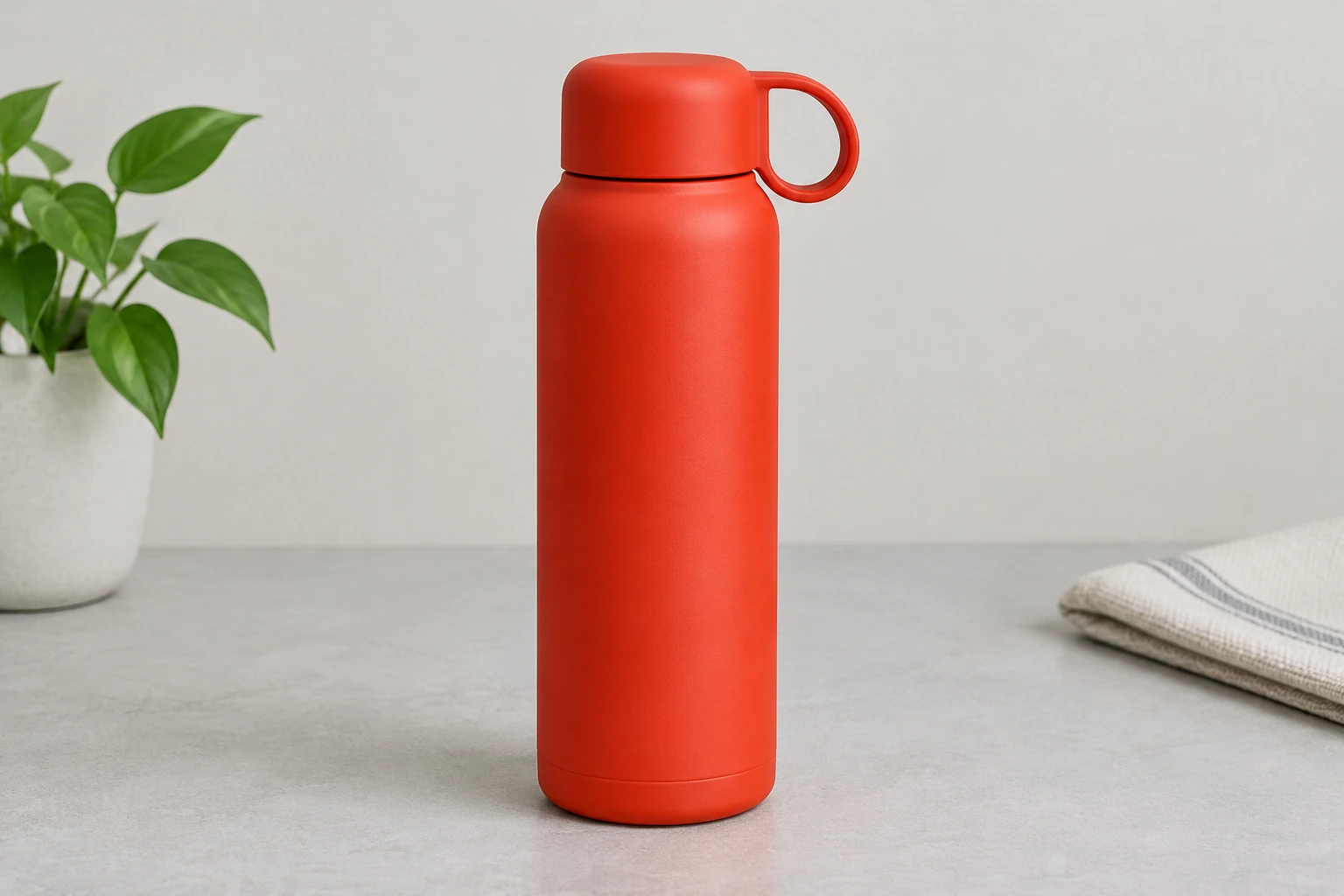
Image to Image is for one supplied reference and an editable instruction. If the goal is changing only the wall color, name that one change and explicitly protect the reference's own subject, arrangement, colors, materials, shape, position, and lighting. A different warm cream tabletop with a muted powder-blue background and gentle natural window light is a separate scene concept, not the wall-color edit prompt. Keep those tasks distinct so the requested edit is easy to review.
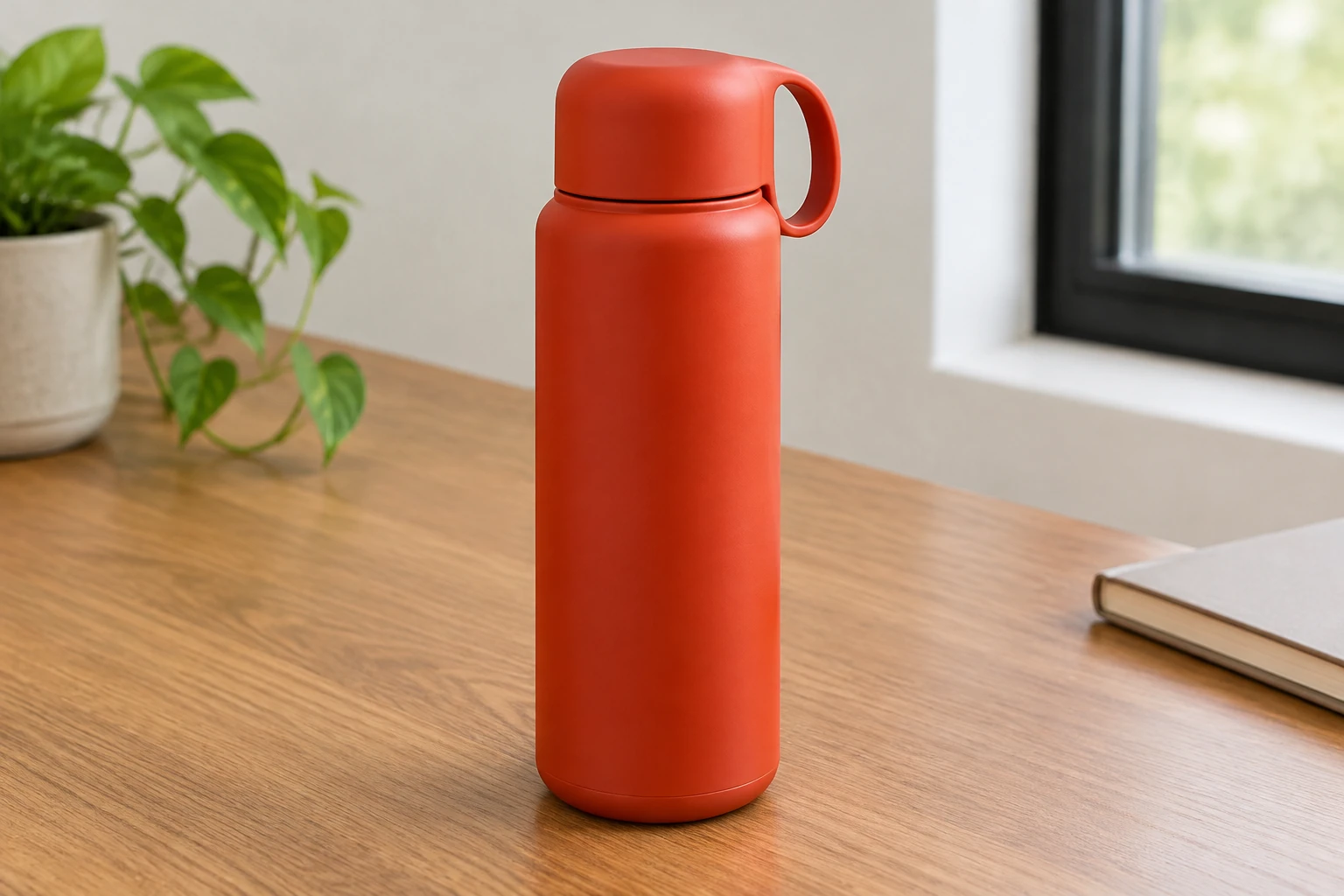
Before using a ready image, inspect the whole frame and then its important details. Look for clipped edges, altered proportions, an unexpected finish, a changed light direction, weak or misplaced contact shadows, and unwanted lettering. For an edit, compare the result with the actual supplied reference and check whether unrelated details remain intact. If the image misses the brief, refine the prompt with one clear correction rather than adding several unrelated requests.
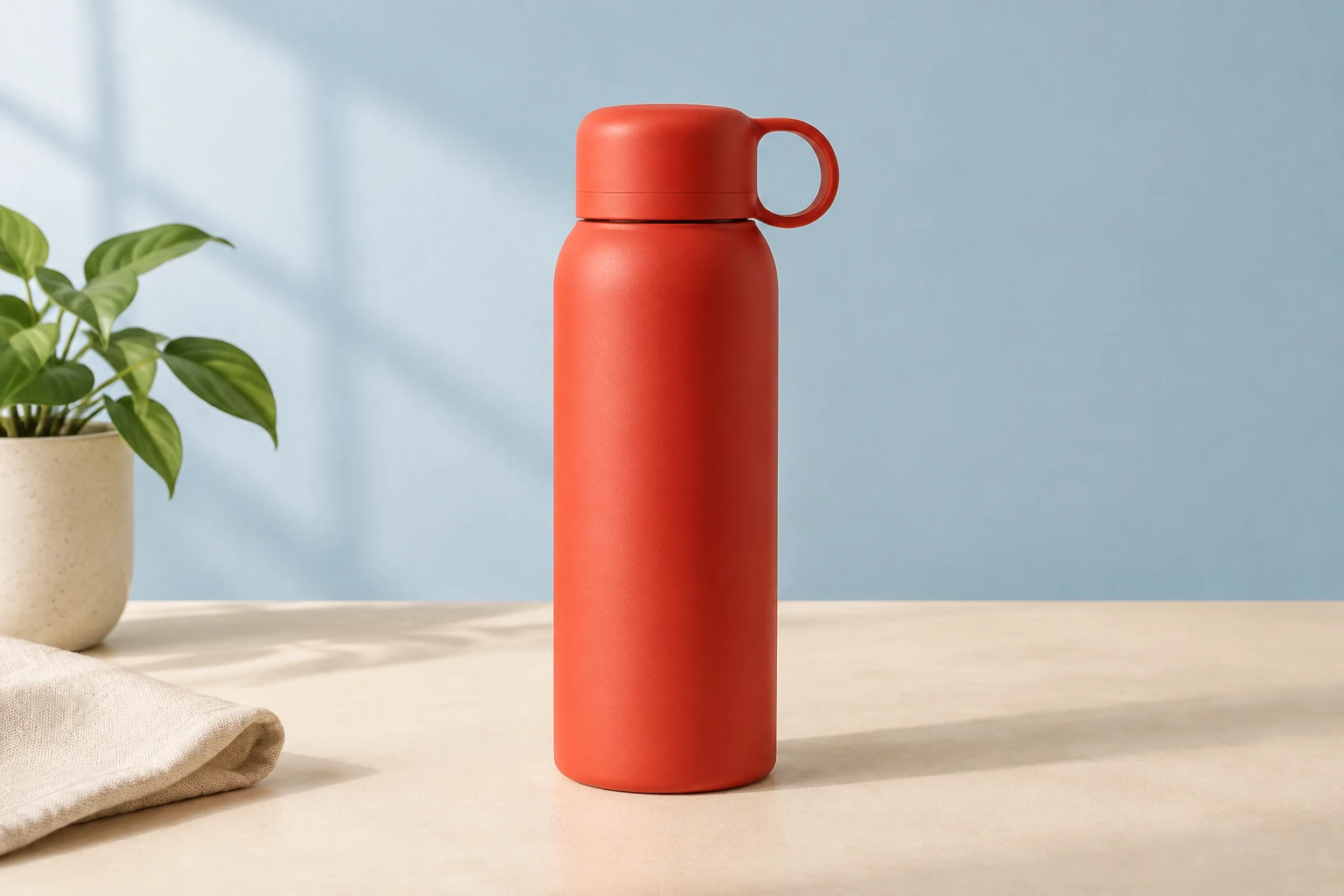
Choose Minimax H3 Image in the model menu, then review the available aspect ratio and resolution. These settings affect the live Required Credits shown before you generate. The model uses paid access on this site, so check your account eligibility and balance before submitting. Processing times vary. Follow the image in History, inspect it when ready, and check the new quote before another attempt. Automatic cutout is a separate workflow; a wall-color instruction does not provide a transparent-background export.
It generates still images from editable prompts or edits one supplied reference with an editable prompt. This guide covers product-photo planning and focused image edits, not video or automatic cutout.
Text to Image has zero uploads and an editable prompt. Image to Image uses one supplied reference and an editable prompt.
This model requires paid access on this site. Select your aspect ratio and resolution, then check the current Required Credits and your account eligibility before Generate. The live quote is the cost to review for your chosen settings.
No exact wait time is stated. History shows the generation status and ready images, so check there for progress and completion.
Use one clear actual reference, state one specific desired change, and spell out what must stay the same. For a wall-color edit, preserve the reference's own subject, shape, material, position, layout, colors, and lighting; do not replace it with the guide's sample flask.
Review the full composition, edges, proportions, material appearance, lighting, and contact shadow. Check for unwanted text and, for an edit, compare against the supplied reference to see whether unrelated details were preserved.
bg-remover.app · Updated