MiniMax H3 Image product guide
Explore a separate product-image brief with a red flask and a focused wall-color edit.

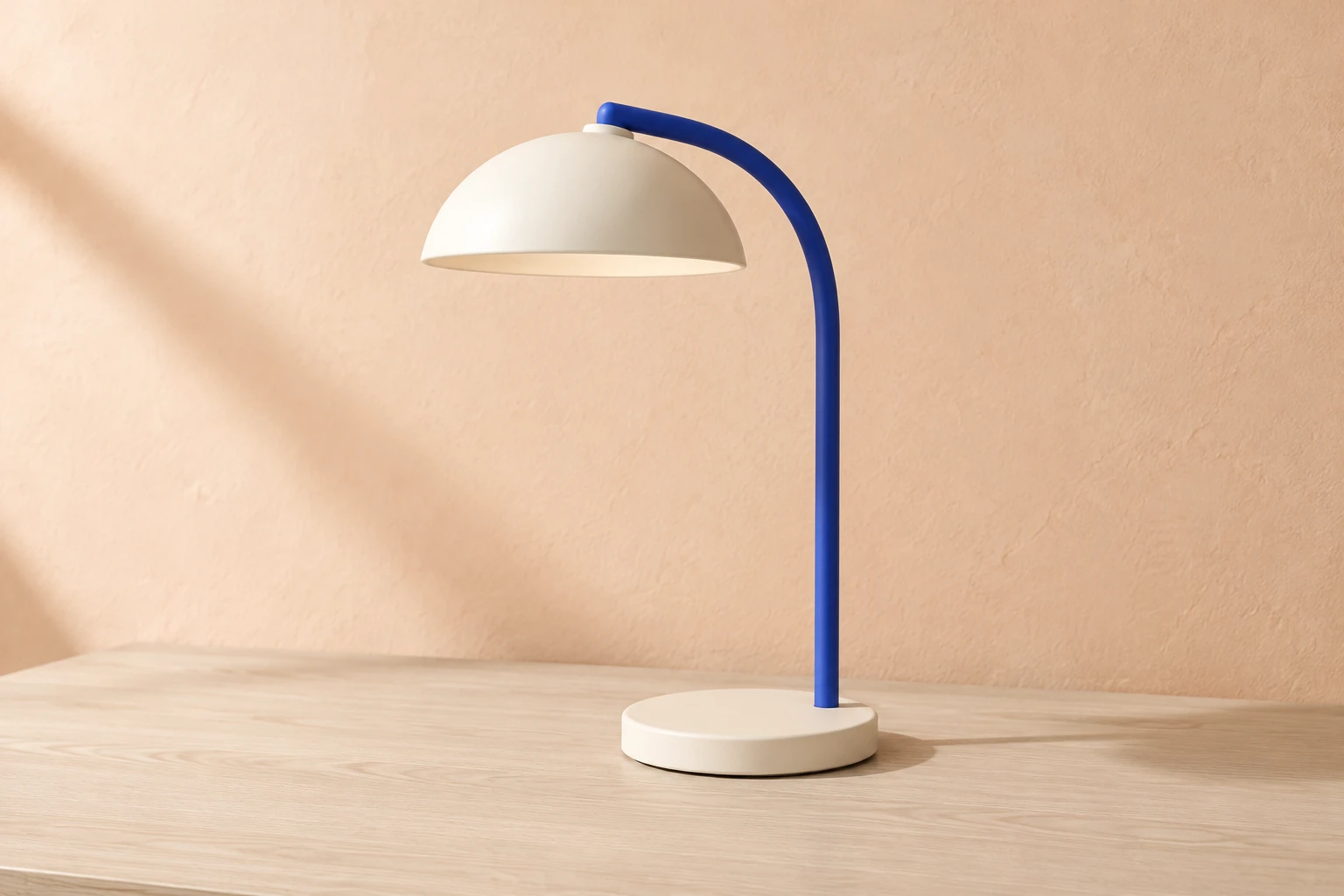
Use Seedream 5.5 to plan a balanced product image from words or change one surface in an existing photo. Start with the original cobalt-and-ivory lamp scene, then inspect the shade, stem, base and tabletop contact. For reference edits, keep your own objects and setting while requesting a single material change.
Choose Seedream 5.5 from the model menu. Text to Image creates a new scene from an editable prompt and needs no upload. Image to Image edits one supplied reference with its own editable prompt. Check that you are in the right mode before adding a photo or changing the brief.
State the subject, its defining shape and materials, the surface beneath it, the background, and the light direction. For a tabletop product image, describe how the object meets the surface as well as its overall silhouette. Ask for the whole subject to remain in frame when that matters. Use the generate prompt above as a complete starting point without uploading an image.
For an edit, supply one clear, actual reference image and identify the single change you want. Say what must stay the same: the reference’s own visible objects, design, colors, positions, background, camera, and light direction. The edit prompt above is written for that task: change only the supporting tabletop to pale ash wood. Do not treat the original lamp example as a replacement for your reference.
Review the live Required Credits for your chosen model, aspect ratio and resolution before Generate. This model uses paid access on this site. Follow status and ready images in History, then inspect the whole composition and its edges, materials and shadows before using the image.
Describe the object in a way that makes its silhouette easy to understand: name the major forms, their materials, and how they relate. For the compact lamp, the curved cobalt stem should meet the circular ivory base and support the shallow dome shade. Ask for the complete lamp to be visible and specify the pale ash-wood desk, light peach plaster wall, and soft side light. A contact shadow helps communicate that the base rests on the desk; it should remain compatible with the stated light direction. Check the generated image for a plausible base-to-table relationship, readable edges, and consistent materials rather than relying on a prompt alone.
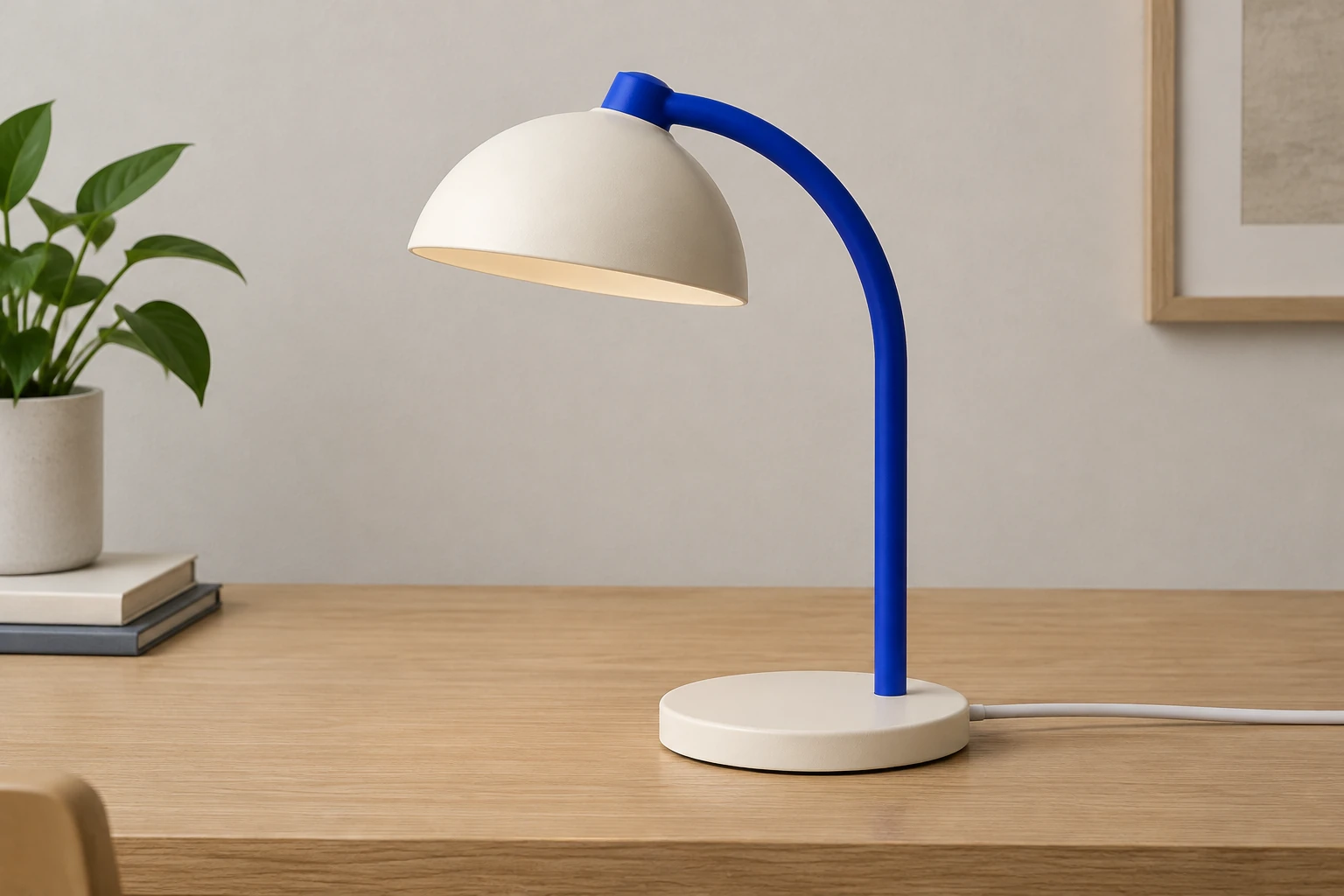
Image to Image is the right mode when you want to change an existing image rather than invent a new subject. Supply one clear reference, then request one concrete adjustment. For this site-specific example, the adjustment is limited to changing the supporting tabletop to pale ash wood. Explicitly preserve the reference’s own objects, layout, colors, design, background, camera, and light direction; do not import the lamp example into the edit. After generation, compare the result with the supplied image: check whether the intended surface changed and whether the objects, edges, contact, and other scene details remain coherent.
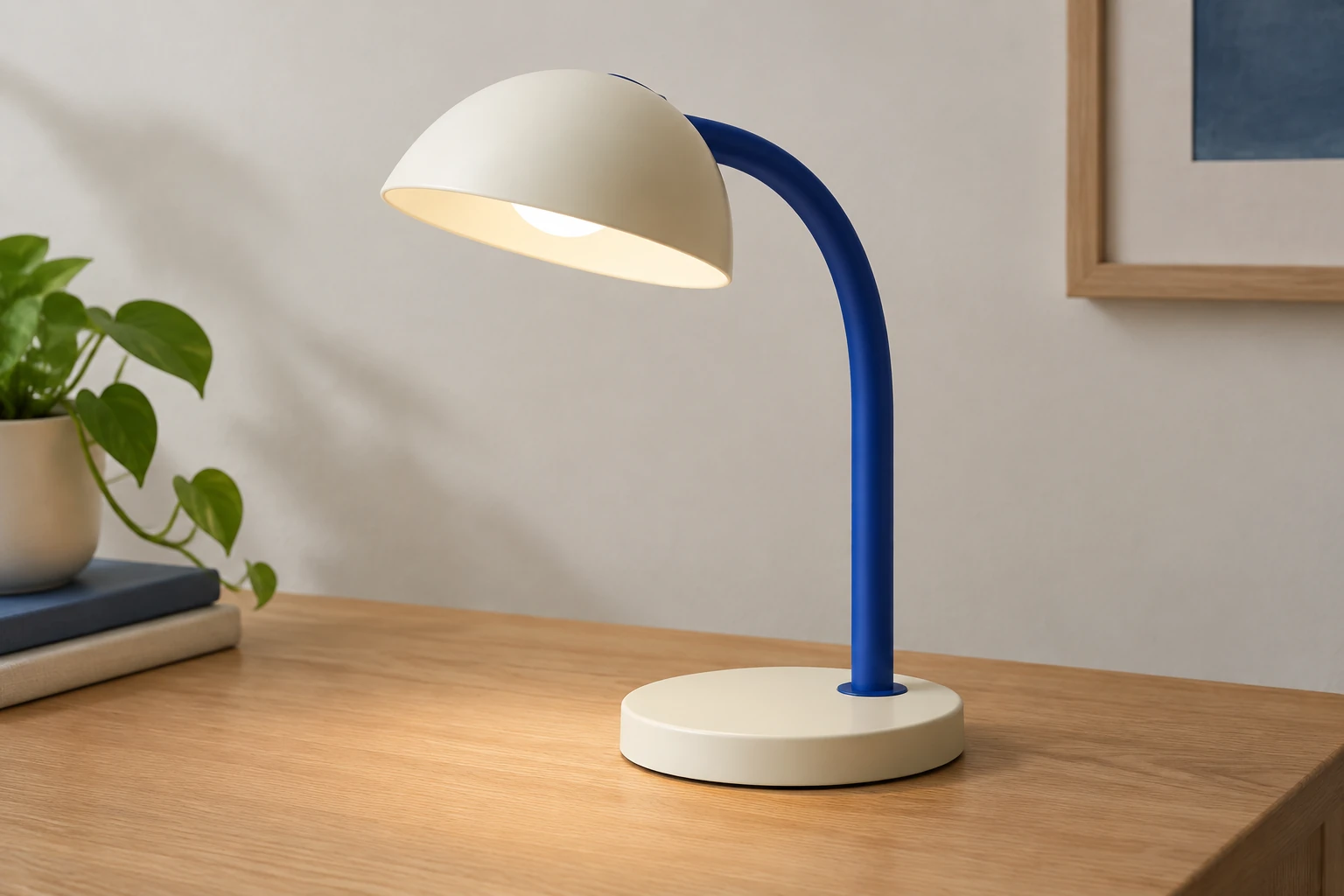
Select an aspect ratio that leaves enough room around the complete object, then review the available resolution. Your chosen model and settings determine the live Required Credits. Seedream 5.5 uses paid access on this site, so check your account eligibility and balance before submitting. Queue and processing times vary. Return to History for status and ready images, and inspect the result before starting another attempt. Check the new quote whenever you change settings.
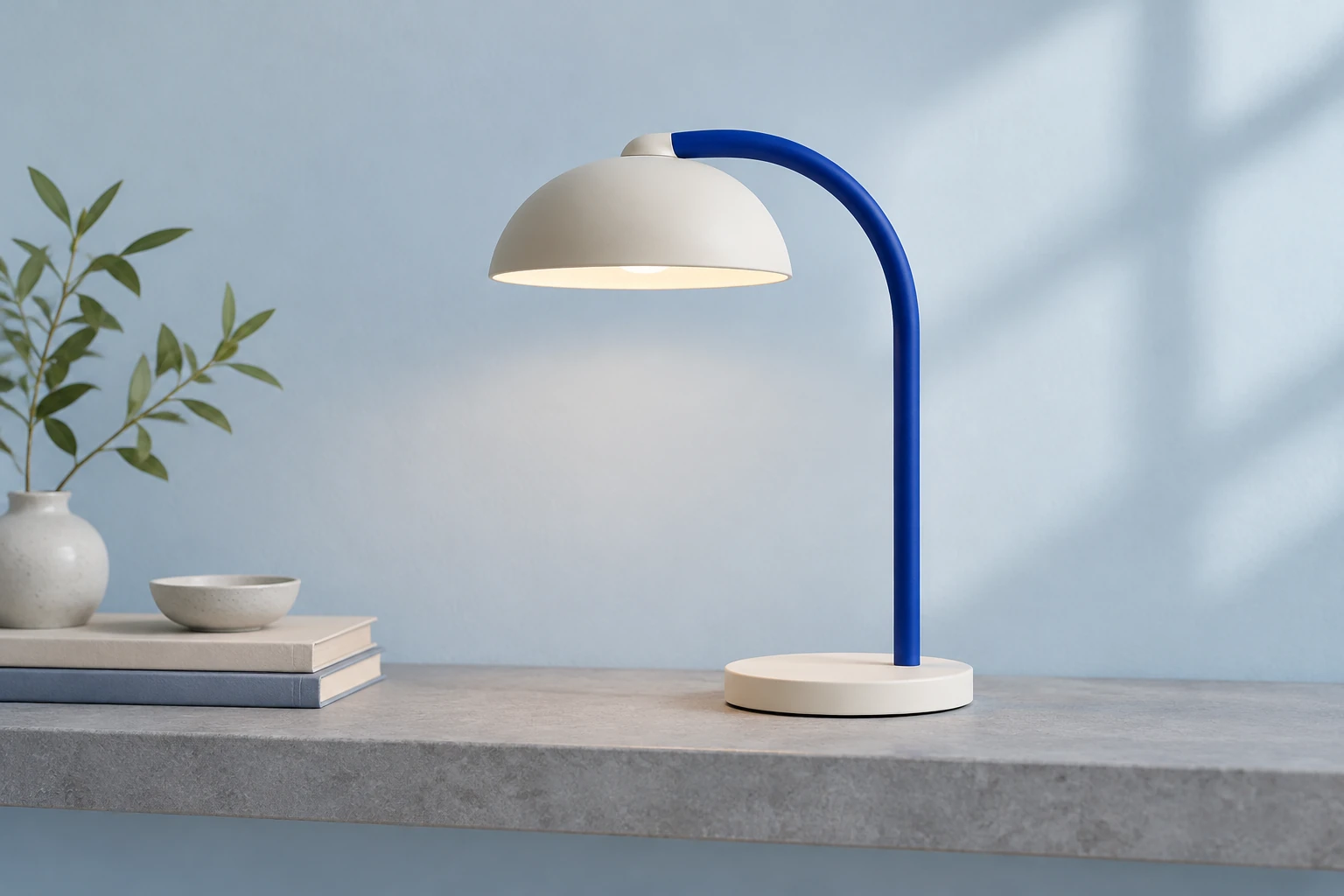
Inspect the ready image at full size and again at the size you plan to use. For a product scene, check that the lamp’s shade and stem align, the base sits convincingly on the desk, and the cobalt and ivory materials remain distinct. Look for clear object boundaries, believable contact shadow, consistent light direction, balanced framing, and unwanted writing or marks. For a reference edit, also confirm that the requested tabletop change is limited and that the source’s own objects and arrangement remain recognizable. Choose a ready image only after it meets your practical needs.
It generates still images from an editable prompt or edits one supplied reference photo. This guide focuses on a clear product silhouette, believable surface contact and a narrowly requested material change.
No upload is used in Text to Image, which has an editable prompt and zero uploads. Image to Image uses one supplied reference and an editable prompt.
This model requires paid access on this site. Select your aspect ratio and resolution, then check the live Required Credits and your account eligibility before Generate.
Queuing and processing times vary. Follow status in History and open the image there once it is ready. Check the current quote before another submission.
Use one clear actual reference, request one specific change, and state which visible features must remain unchanged. For a tabletop edit, name the new surface and preserve the reference’s own objects, design, colors, positions, background, camera, and light direction.
Review subject proportions, shade-and-stem alignment where relevant, material appearance, edges, tabletop contact, shadow and light direction, composition, and unwanted text. For an edit, also verify that the requested change did not unnecessarily alter the rest of the reference.
Explore a separate product-image brief with a red flask and a focused wall-color edit.
Plan a collectible-style image with a different subject and composition.
Review pricing information and check the live Required Credits quote in the generator before creating an image.
bg-remover.app · Updated